The complete guide to Frompting
Everything from your first prompt as a guest to Brand Kits, image and video prompts, and team seats — in the order you'll actually meet them.
Which plan are you on? Highlight only the parts that apply to you — everything else dims, so you can still see what the other plans add.
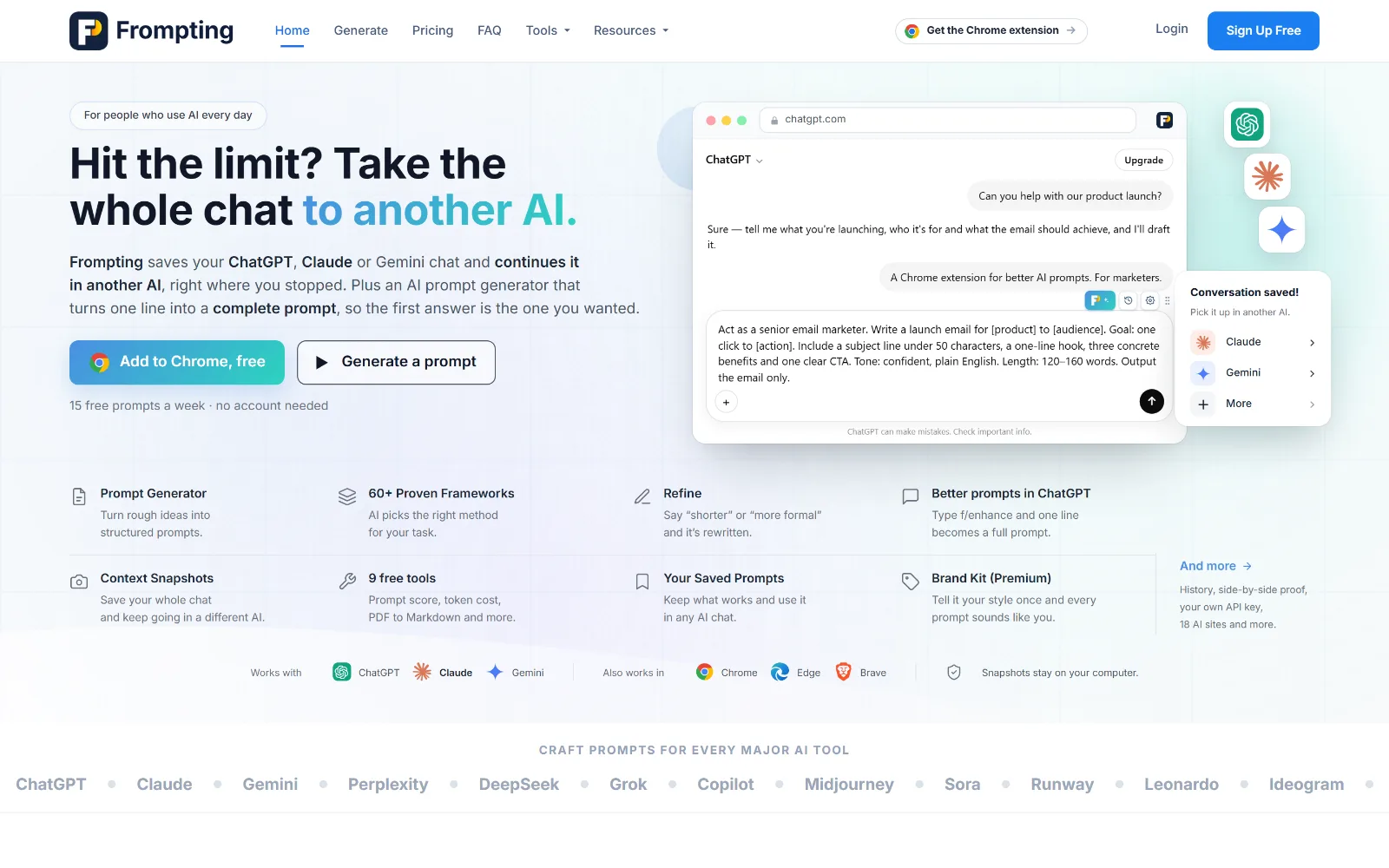
What Frompting actually does
Frompting does one thing: it turns a plain-language description of what you need into a well-structured prompt you can paste into any AI tool.
The distinction matters, and it trips up most first-time users: we don't answer your question — we write the instructions that get you a better answer. Ask for "a welcome email sequence" and you don't get emails back. You get a detailed brief that tells ChatGPT, Claude or Gemini exactly what to write, who it's for, how long it should be, and what "good" looks like.
The reason that's worth doing is that most disappointing AI output isn't a model problem, it's a briefing problem. A vague prompt gets a vague answer. Frompting applies one of 60+ proven frameworks — structures like CO-STAR, RACE and Chain of Thought that professionals use to brief models properly — so you don't have to know prompt engineering to benefit from it.
Plans, limits and what you get
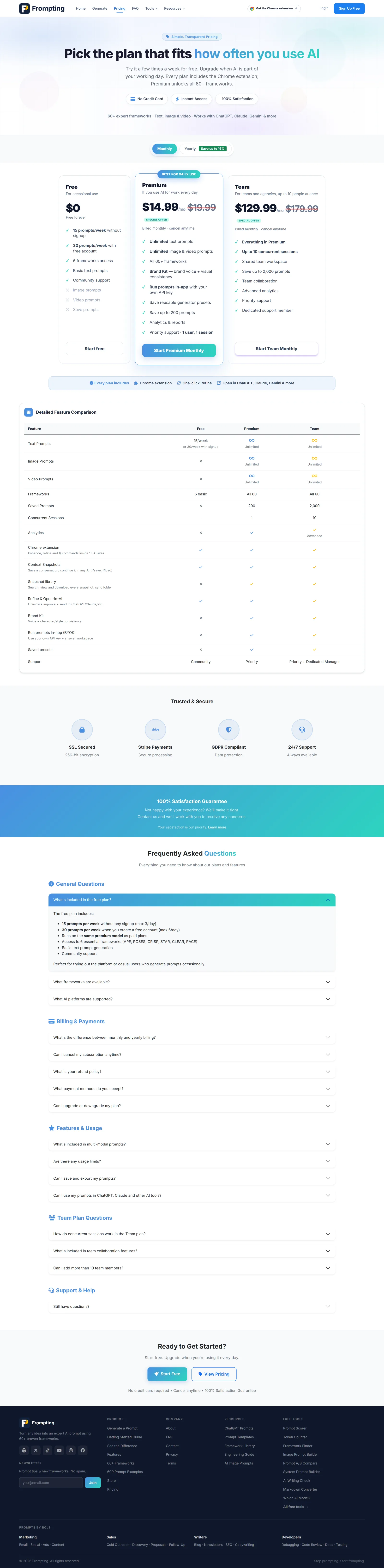
Four ways to use Frompting. You can do useful work on every one of them, including without an account.
| What you get | Guest | Free | Premium | Team |
|---|---|---|---|---|
| Price | Free | Free | $14.99/mo | $129.99/mo |
| Prompts per day | 3 | 6 | 1,500 | 15,000 shared |
| Prompts per week | 15 | 30 | No weekly cap | No weekly cap |
| Frameworks | 6 + General | 6 + General | All 60+ | All 60+ |
| Text prompts | Yes | Yes | Yes | Yes |
| Image & video prompts | — | — | Yes | Yes |
| Save prompts & history | — | Yes | Yes | Yes |
| Brand Kit | — | — | Yes | Yes |
| Run in-app with your own key | — | — | Yes | Yes |
| Seats | 1 | 1 | 1 | 10 |
Two things worth knowing before you decide:
- Free and Premium run on the same model. We don't downgrade free users to a weaker AI — what you see on the free plan is representative of our real quality. Paid plans get priority capacity and far more volume.
- The frameworks are the main upgrade. Free gives you 6; Premium unlocks all 60+ plus image and video. That's the difference you feel most.
Try it without an account
You don't need to sign up to see whether this works for you. Go straight to Generate and start typing.
- Open the Generate page.
- Describe what you need in the big box — plain language is fine, and a full sentence beats a keyword.
- Pick a framework from the dropdown, or leave it and we'll suggest one.
- Press Generate. Your prompt streams in a few seconds.
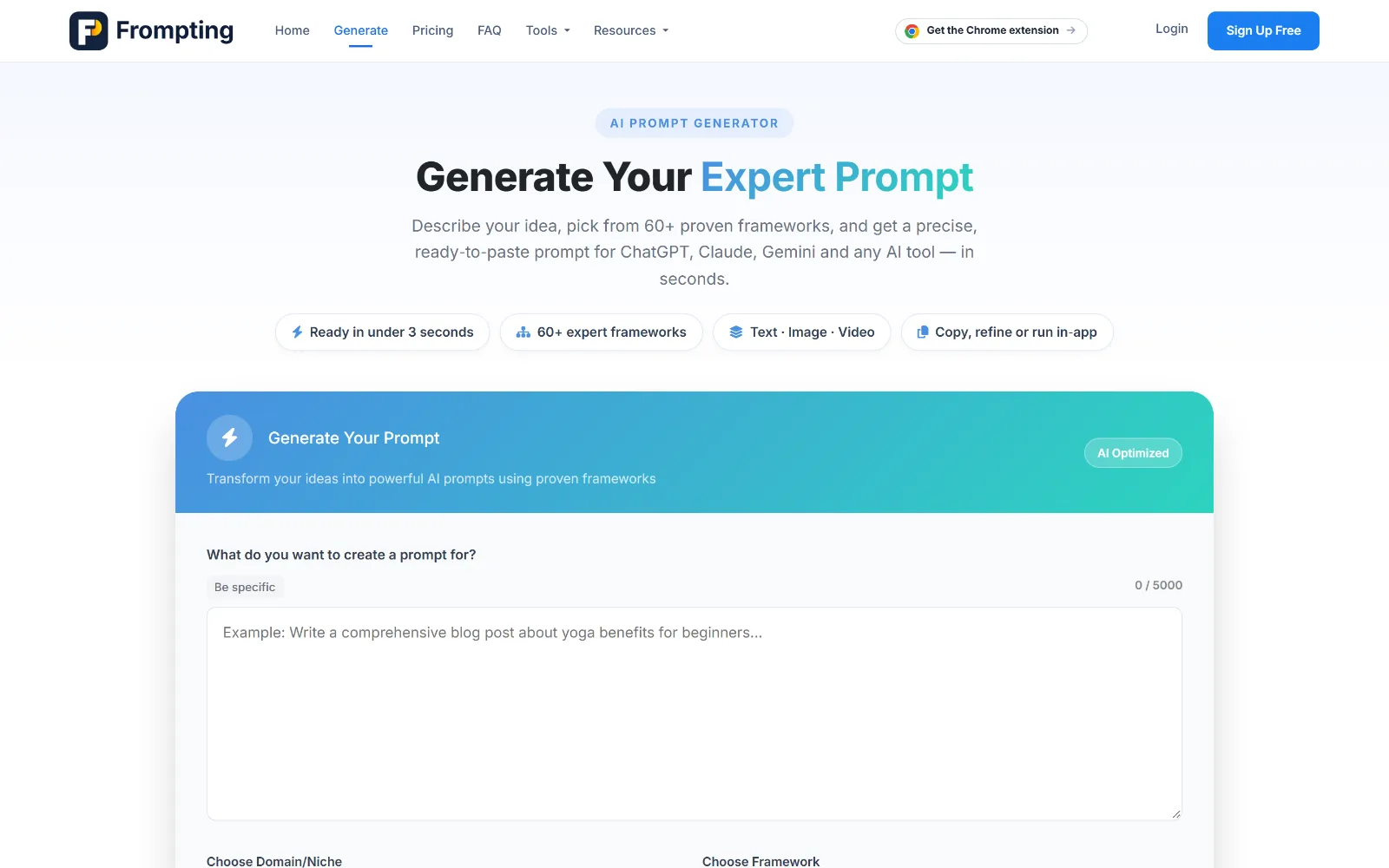
As a guest you get 3 prompts a day, up to 15 a week, using the free frameworks. Your allowance is tracked against your connection, so clearing cookies won't reset it.
Create your account
A free account roughly doubles your allowance and, more importantly, starts keeping your work.
- Go to Register.
- Enter your name, email and a password. Use an address you can receive mail at — you'll need to confirm it.
- Open the verification email and click the link. It's idempotent, so clicking twice is harmless.
- You're in. You now have 6 prompts a day and 30 a week.
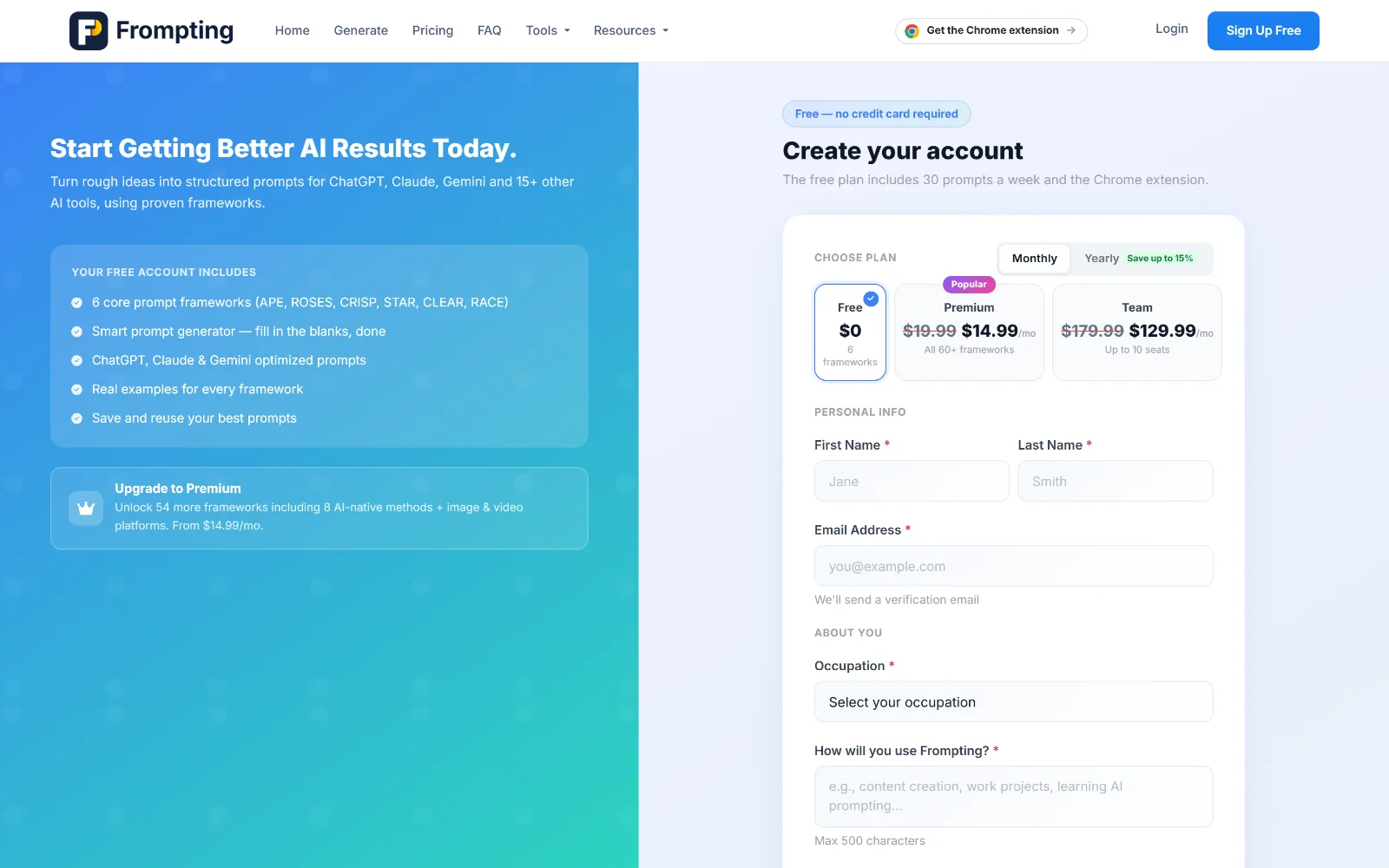
One free account is allowed per signup location, which keeps the free tier sustainable for everyone.
Signing in
Sign in at the login page with your email and password. Forgotten passwords are reset by email from the same screen.
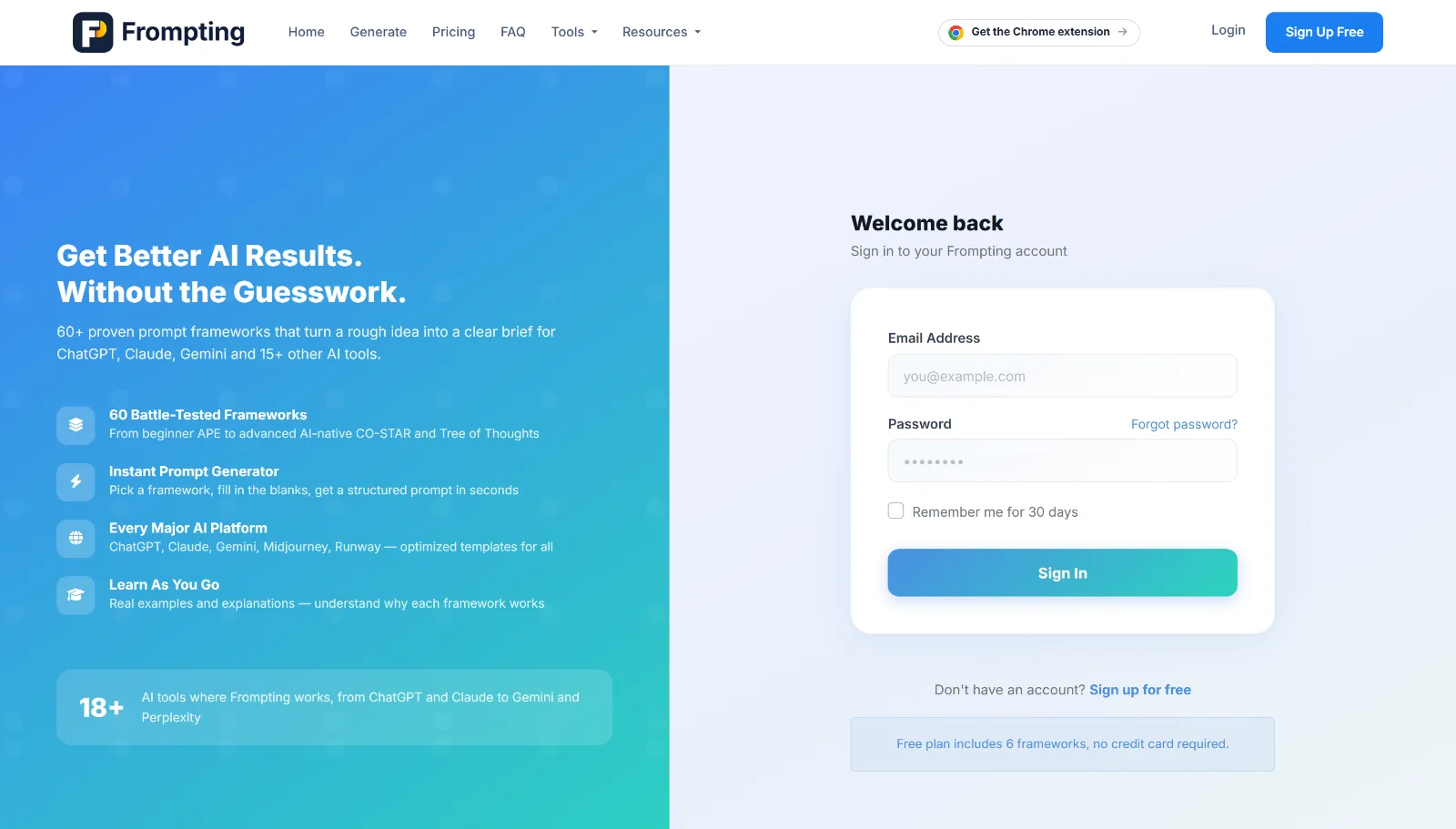
If you're told you're already signed in elsewhere, sign out there first, or wait about twenty minutes for the idle session to expire on its own.
The Generate screen
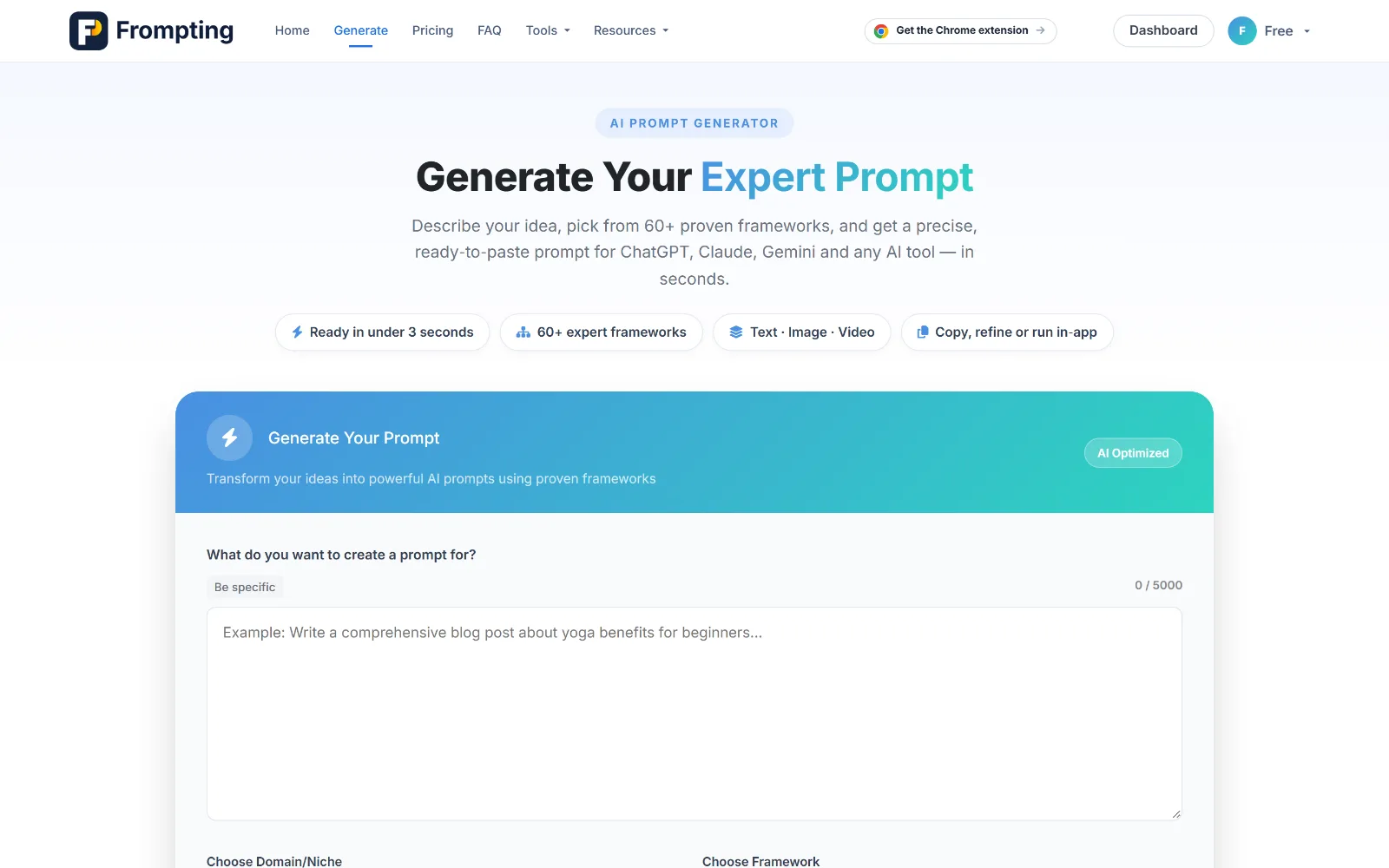
Everything happens on Generate. The screen has four parts, top to bottom.
- What do you want a prompt for? — your topic, up to 5,000 characters. Detail helps: "a welcome email for new subscribers to a small coffee roastery, warm and personal" beats "welcome email".
- Additional context — up to 2,000 characters for audience, tone, constraints or anything else that changes the answer.
- Domain & Framework — the structure to apply. Covered in the next section.
- Advanced options — creativity, response length and other knobs. Every one defaults to Auto, which is a genuinely good default.
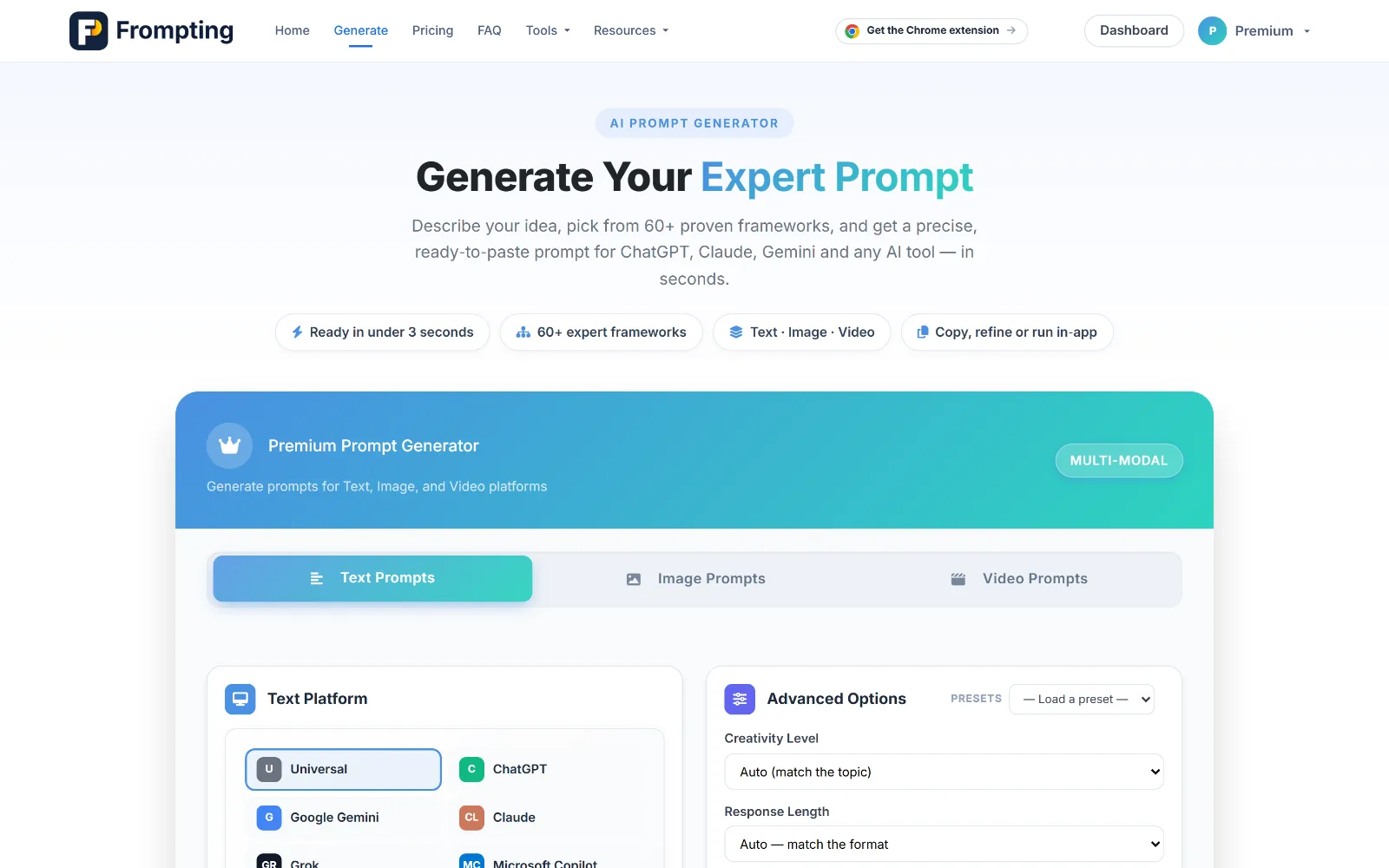
Premium and Team accounts see the three Text · Image · Video tabs above the form. Free and guest users get the text generator only, which looks a little simpler:
Choosing a framework
A framework is a proven structure for briefing an AI. CO-STAR, for instance, covers Context, Objective, Style, Tone, Audience and Response format — so the prompt it produces can't quietly forget who the reader is.
You have three ways to choose one:
- Let us suggest. Start typing and matching frameworks appear under the box. Click one to accept.
- Browse by domain. Pick a domain first — Strategy & Planning, Persuasion & Conversion, and so on — to narrow the list.
- Pick General. "General (No Framework)" applies no structure and just writes the best prompt it can. A perfectly good default when nothing fits.
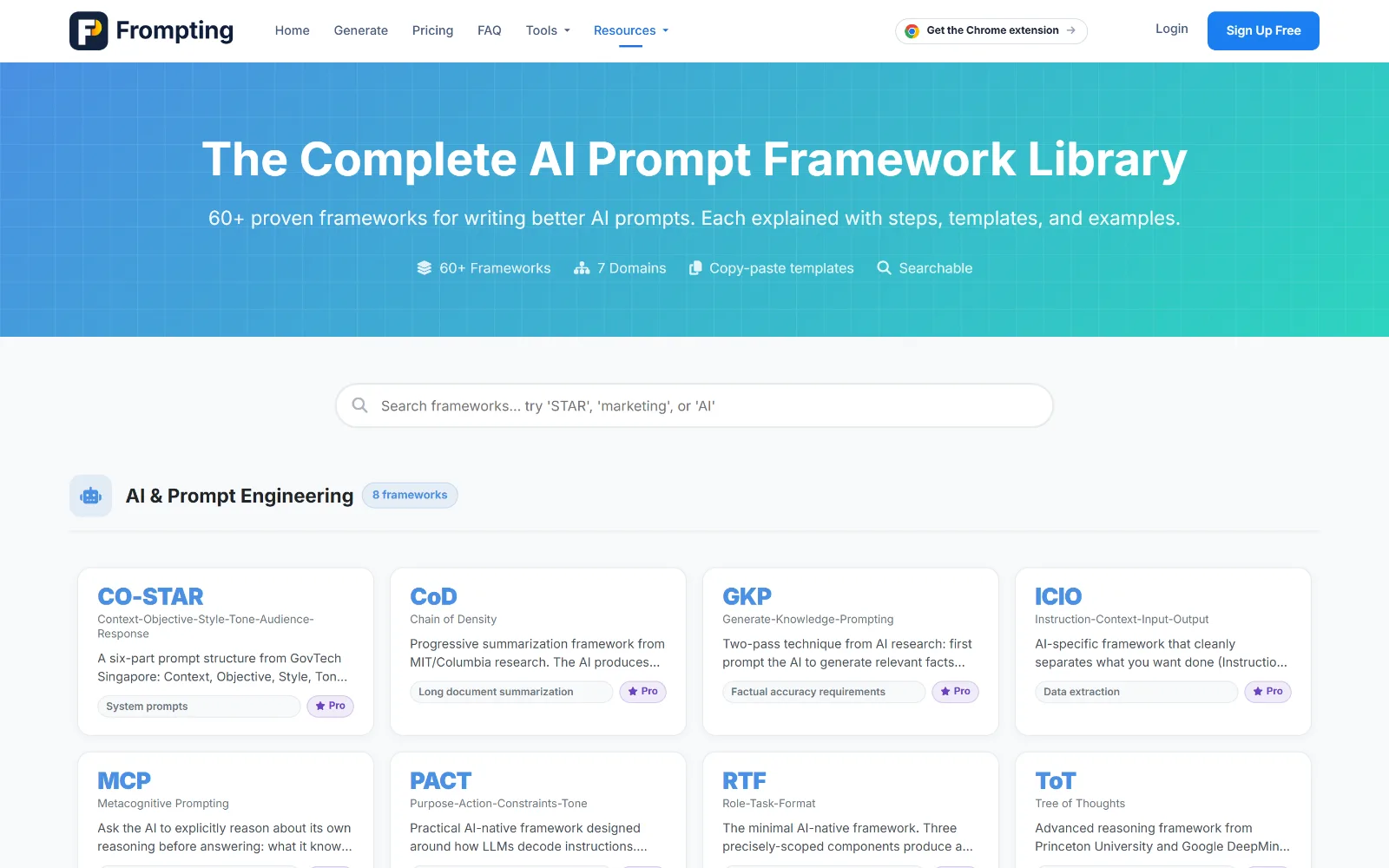
Browse everything at the framework library. 6 are free (plus General); the other 54 need Premium.
Reading your prompt
Press Generate and your prompt streams in live, usually within a few seconds. Here's a real one, from the topic "a welcome email sequence for new subscribers to a small-batch coffee roastery" using CO-STAR:
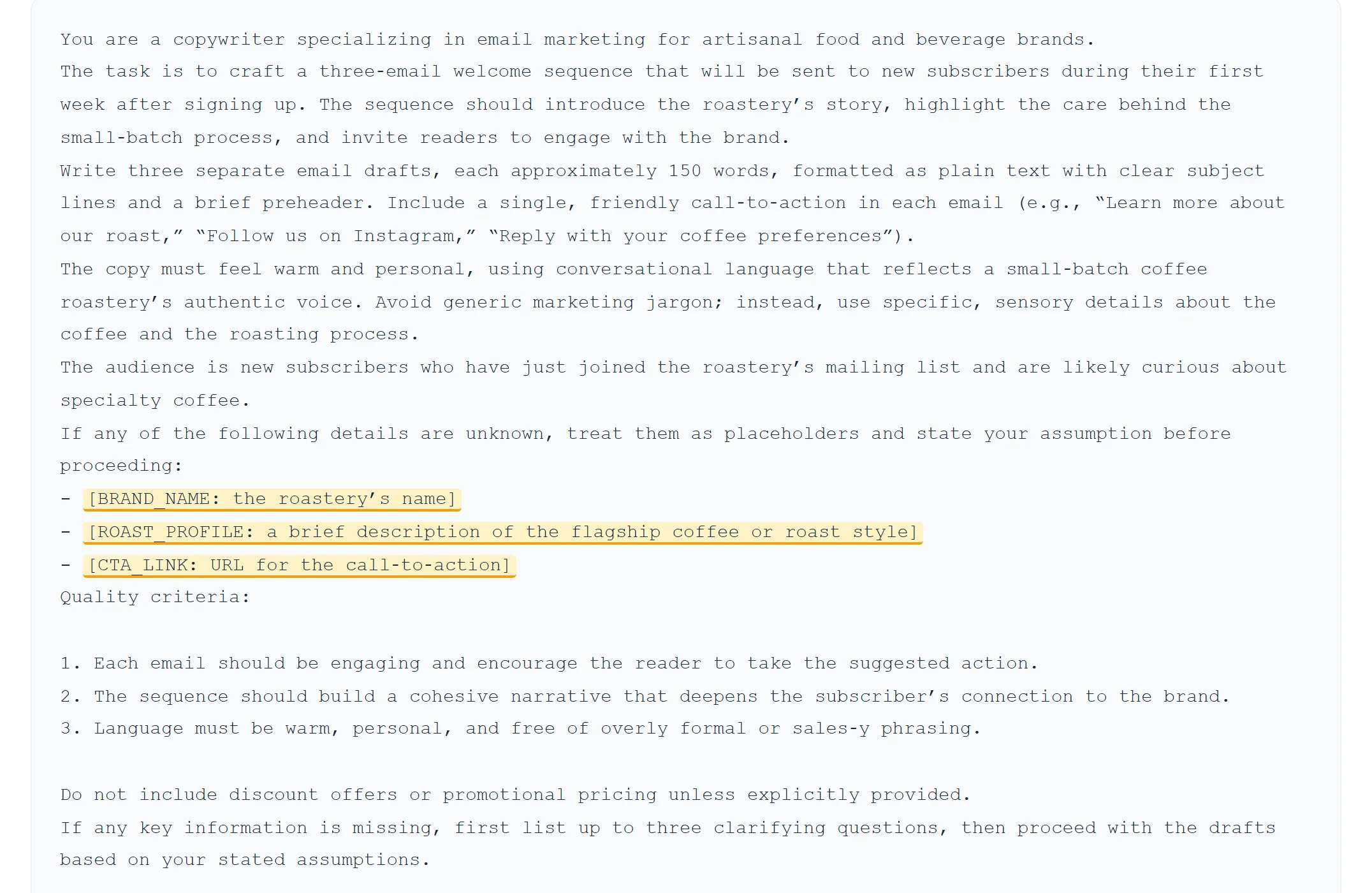
A good prompt from Frompting reliably contains:
- A role — "You are a copywriter specialising in email marketing for artisanal food brands."
- The task and its real dimensions — three emails, ~150 words each, subject lines and preheaders.
- The audience, stated explicitly.
- Quality criteria — what a good answer looks like, so the AI can self-check.
- A boundary — something to leave out. Here: no discount offers unless you supply them.
Filling the gaps
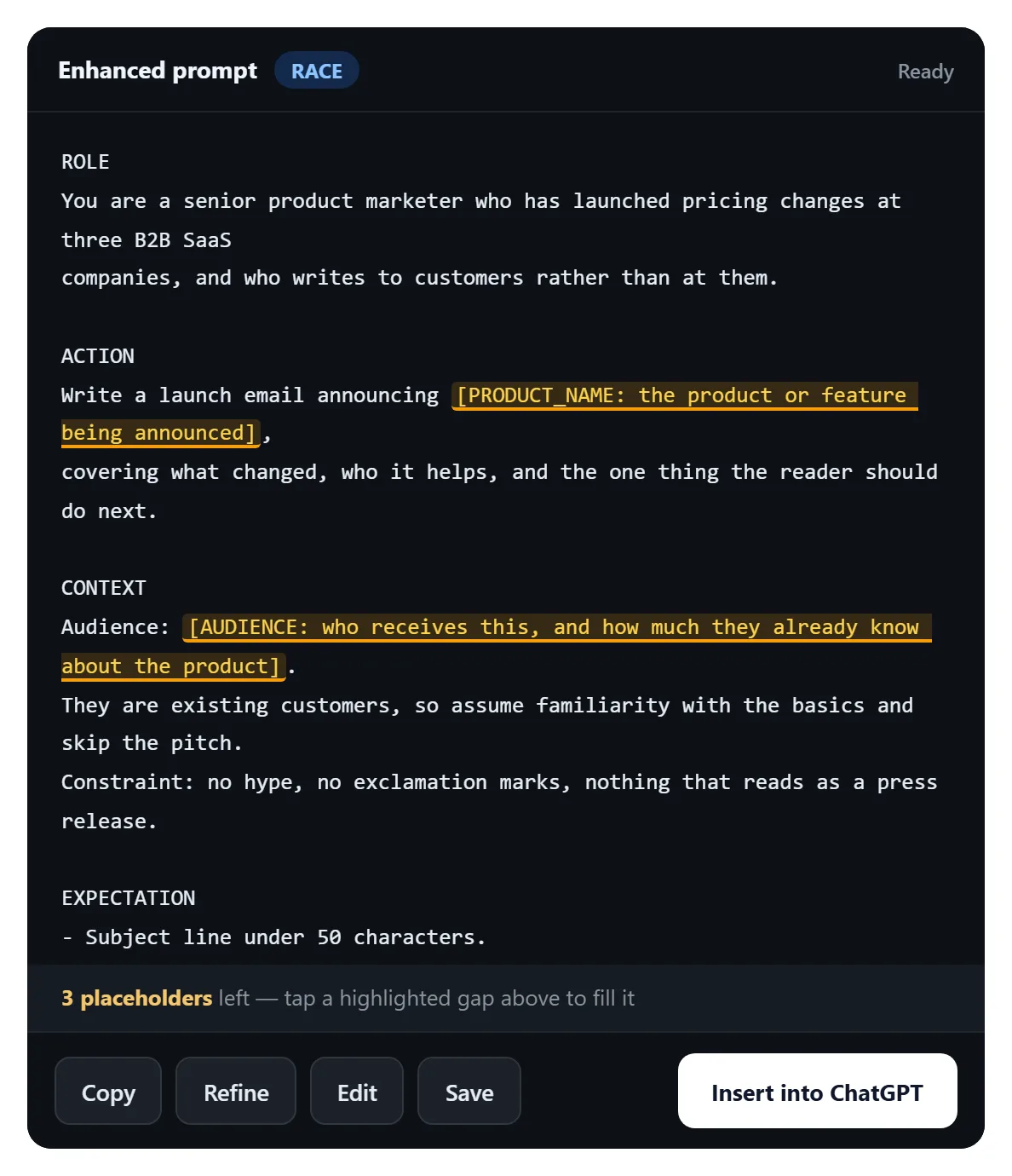
You'll see highlighted gaps in square brackets, like [BRAND_NAME: the roastery's name]. These are deliberate, and they're the most important thing to understand about how Frompting works.
We refuse to invent facts about your business. A prompt that confidently asserts your team size, your pricing or your product name — when you never said — produces an answer that is fluent and wrong. So wherever the prompt needs something only you know, we leave a labelled gap instead of guessing.

- Click any highlighted gap.
- Pick a suggested value or type your own.
- It's swapped into the prompt immediately. Click again to change it.
Using your prompt
Under every generated prompt is a row of actions.
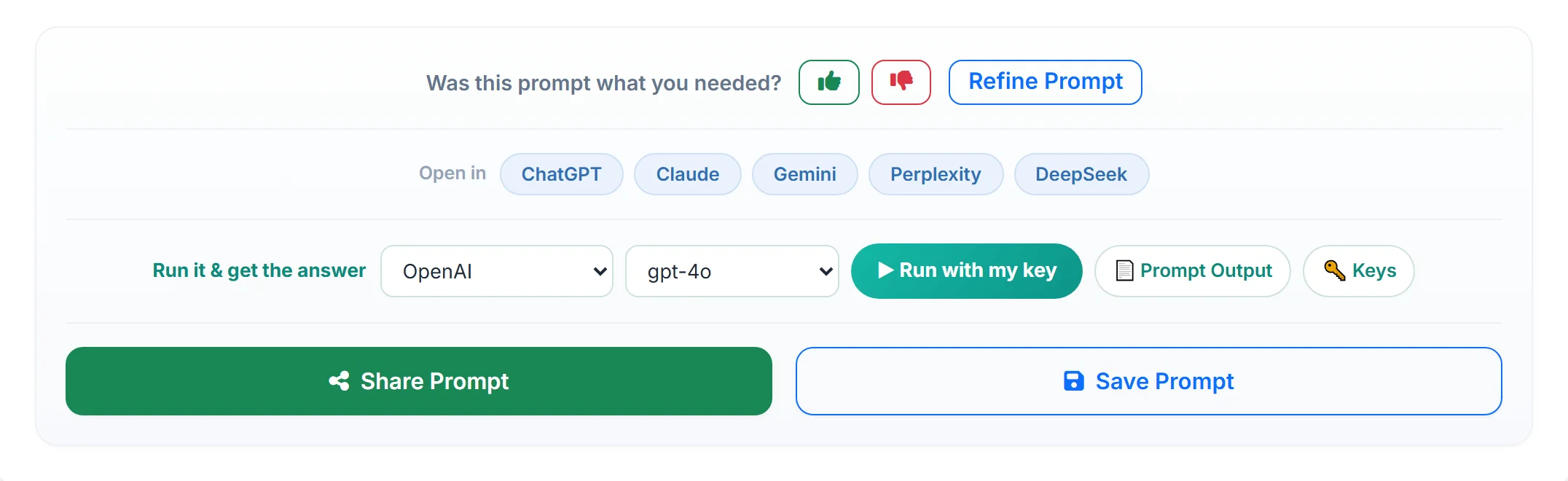
- Open in — sends the prompt straight to ChatGPT, Claude, Gemini, Perplexity or DeepSeek. Some prefill the box for you; the rest copy the prompt as the tab opens, so you just paste.
- Refine Prompt — improve it without starting over. See the next section.
- Run with my key — get the actual answer without leaving Frompting (Premium and Team).
- Save Prompt — name it and keep it. Signed-in users only.
- Share Prompt — produces a link to the prompt.
- 👍 / 👎 — genuinely read, and genuinely used to improve the engine.
Refining a prompt
If a prompt is close but not right, refine it rather than regenerating. Type what you want changed — "make it shorter and less formal", "add a section about shipping" — and press Refine.
Refining keeps the structure that was already working and applies your steer on top, streaming the result live. Each refine is registered as a new version, so you can compare against what you had and go back if the change wasn't an improvement.
Refine understands what kind of prompt it's working on: refining an image or video prompt keeps the visual structure instead of rewriting it into prose.
Run it with your own key
Premium and Team users can run a prompt and get the real answer without leaving Frompting — using your own API key from OpenAI, Anthropic, Google, Mistral, Groq, xAI, DeepSeek or OpenRouter.
- Click 🔑 Keys under any generated prompt, or open API Keys in your dashboard.
- Paste the key for whichever provider you use and save it.
- Choose the provider and model in the run bar, then press Run with my key.
- The answer streams into a workspace where you can edit it, format it, and export to PDF or Word.
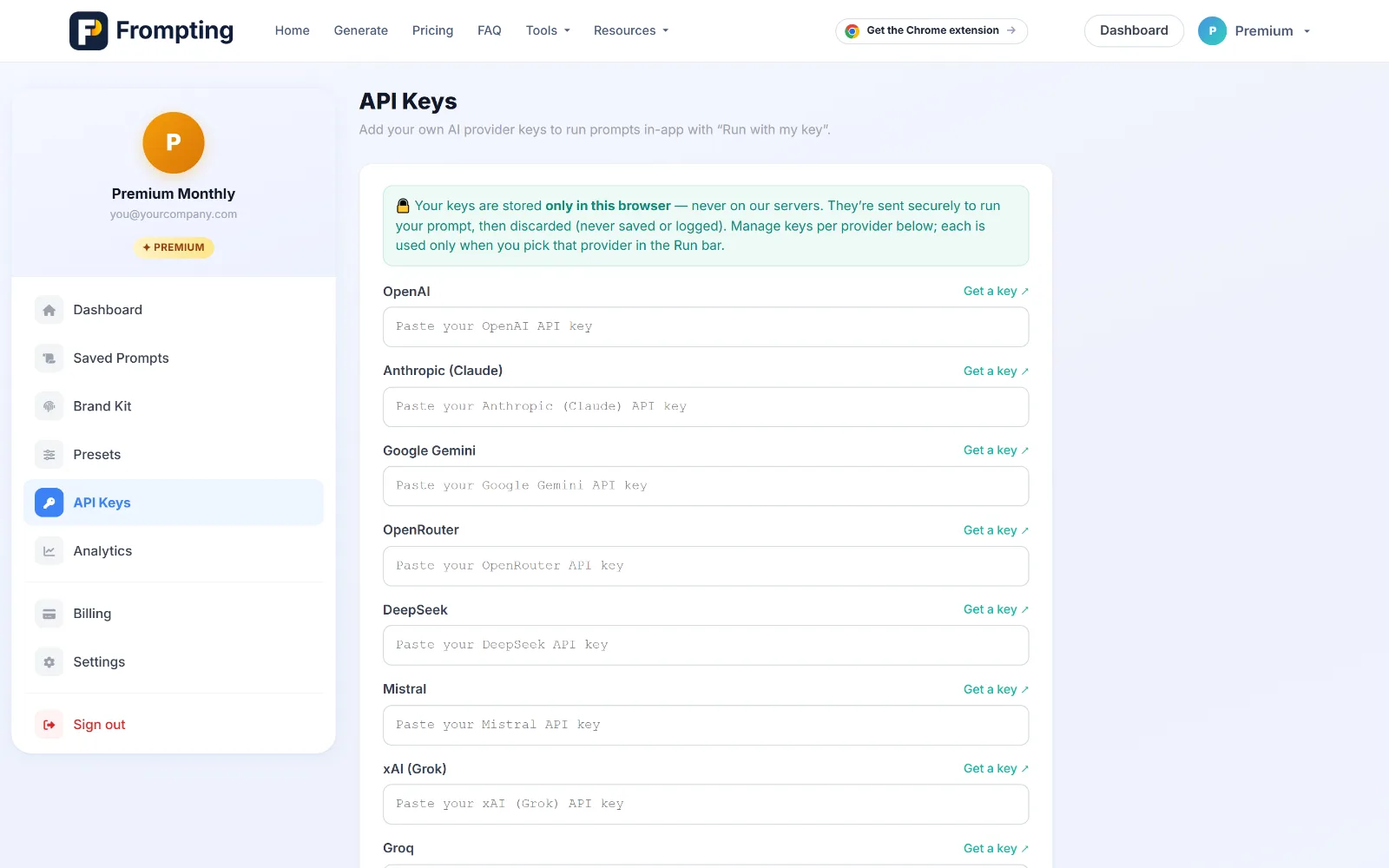
Answers are kept locally for 30 days so you can come back to them, and you can delete any saved key individually at any time.
Image prompts
Switch to the Image Prompts tab. Describe your image, choose your target platform — Midjourney, DALL·E, Stable Diffusion, Leonardo, Ideogram, Firefly, Imagen — and generate.
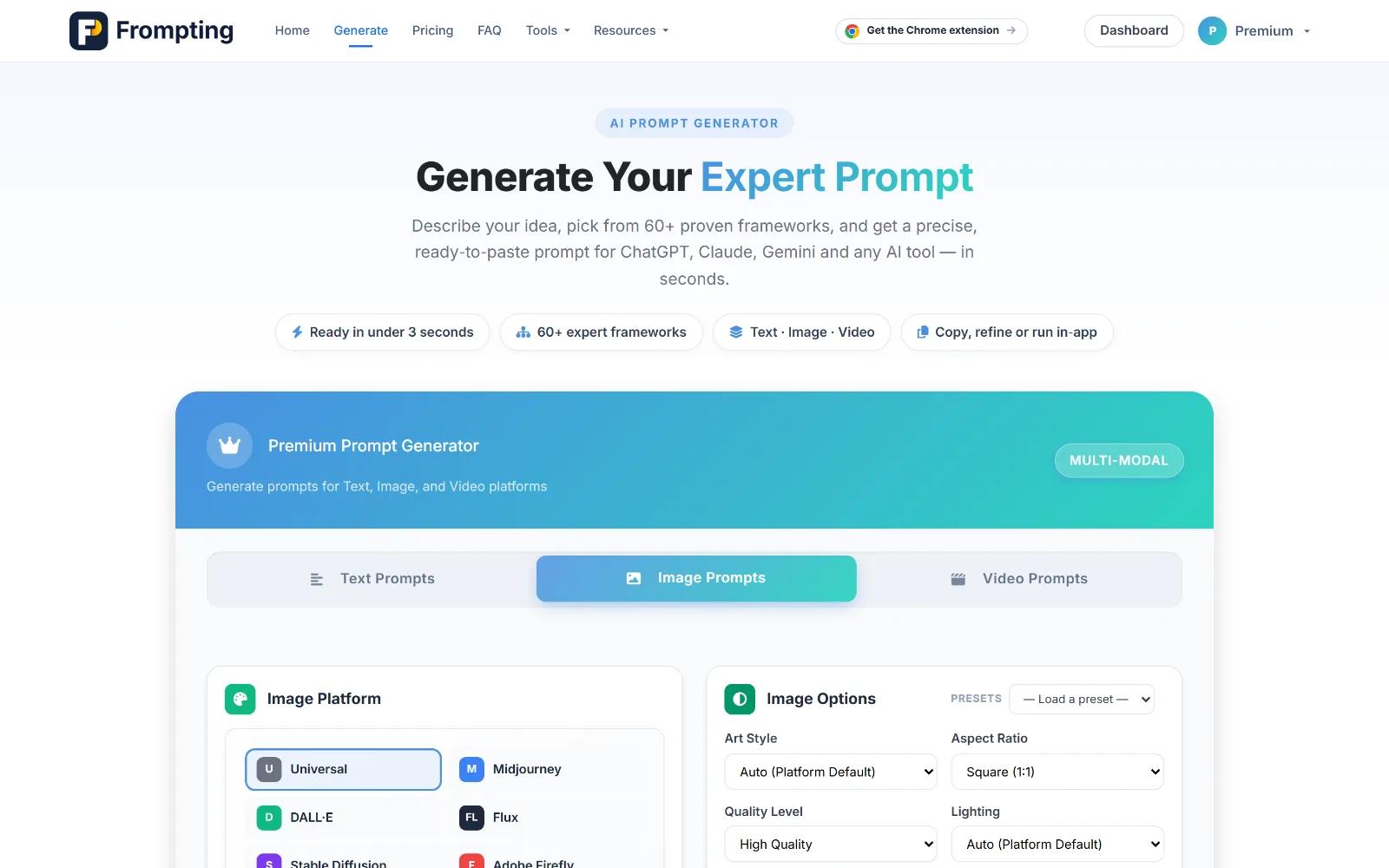
Each platform reads prompts differently, so we write for the one you pick:
- Midjourney gets comma-separated descriptors and real parameters (
--ar,--v,--no) appended correctly. - DALL·E gets flowing natural prose, which is what it responds to.
- Stable Diffusion and Leonardo get a proper
Negative prompt:line.
You also get an automatic negative prompt — the things you don't want (extra fingers, warped faces, blurry edges) added for you, merged with anything you specify. It's deliberately left off DALL·E and ChatGPT, which read negatives as things to include.
Video prompts
The Video Prompts tab targets Sora, Runway, Kling, Veo, Pika, Luma and Hailuo.
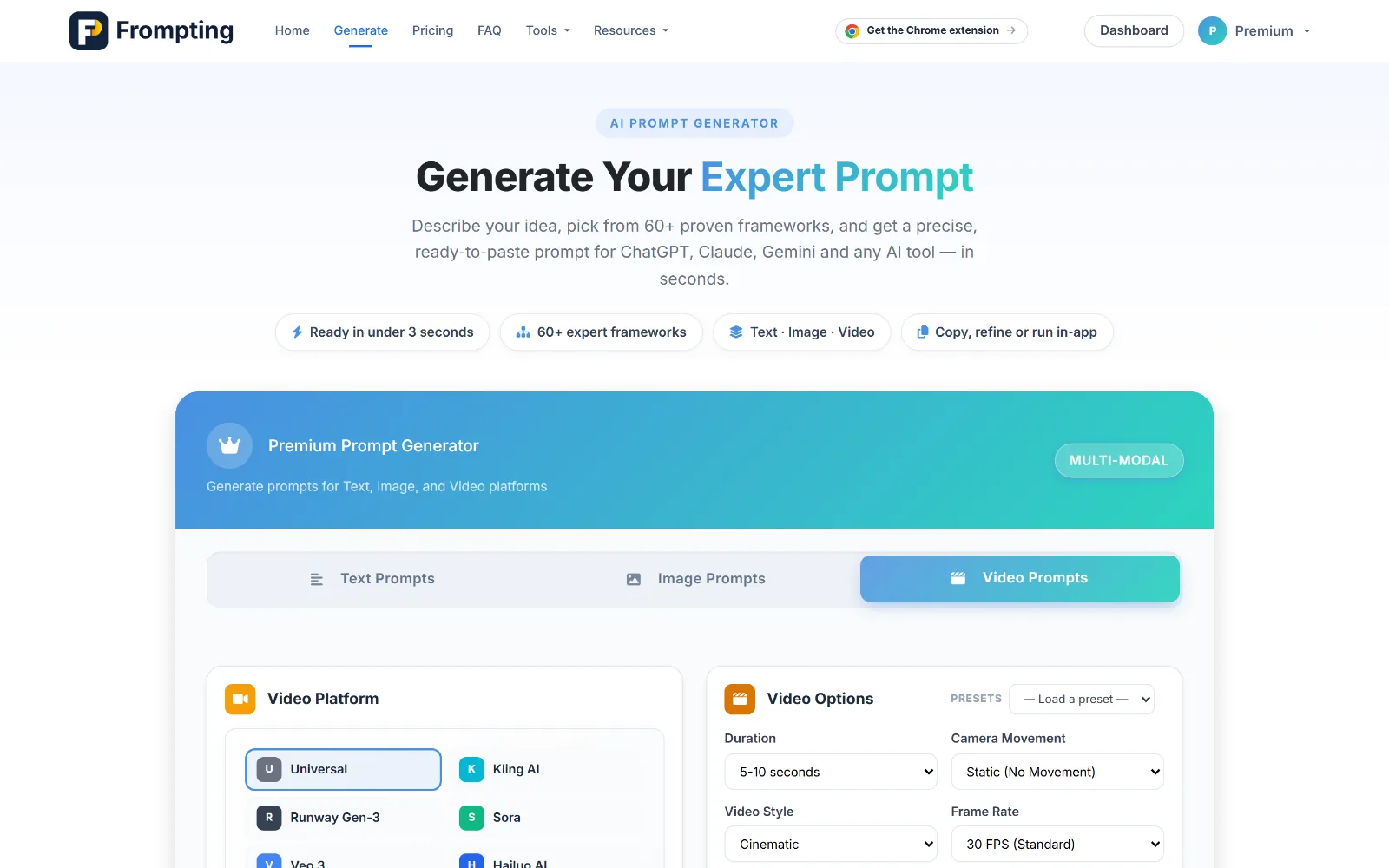
Video prompts come out structured into labelled sections — Subject, Action, Camera, Lighting, Environment, Style, Motion, Technical and Negative — because video models follow a labelled brief far better than a paragraph. It also makes the prompt easy to edit: change the Camera line without touching anything else.
The Negative section catches the failure modes specific to video: warped motion, camera jitter, flickering, morphing hands.
Brand Kit
A Brand Kit is a saved identity that gets folded into every prompt automatically, so you stop re-typing "friendly but not chatty, British spelling, never say synergy" on every single generation.
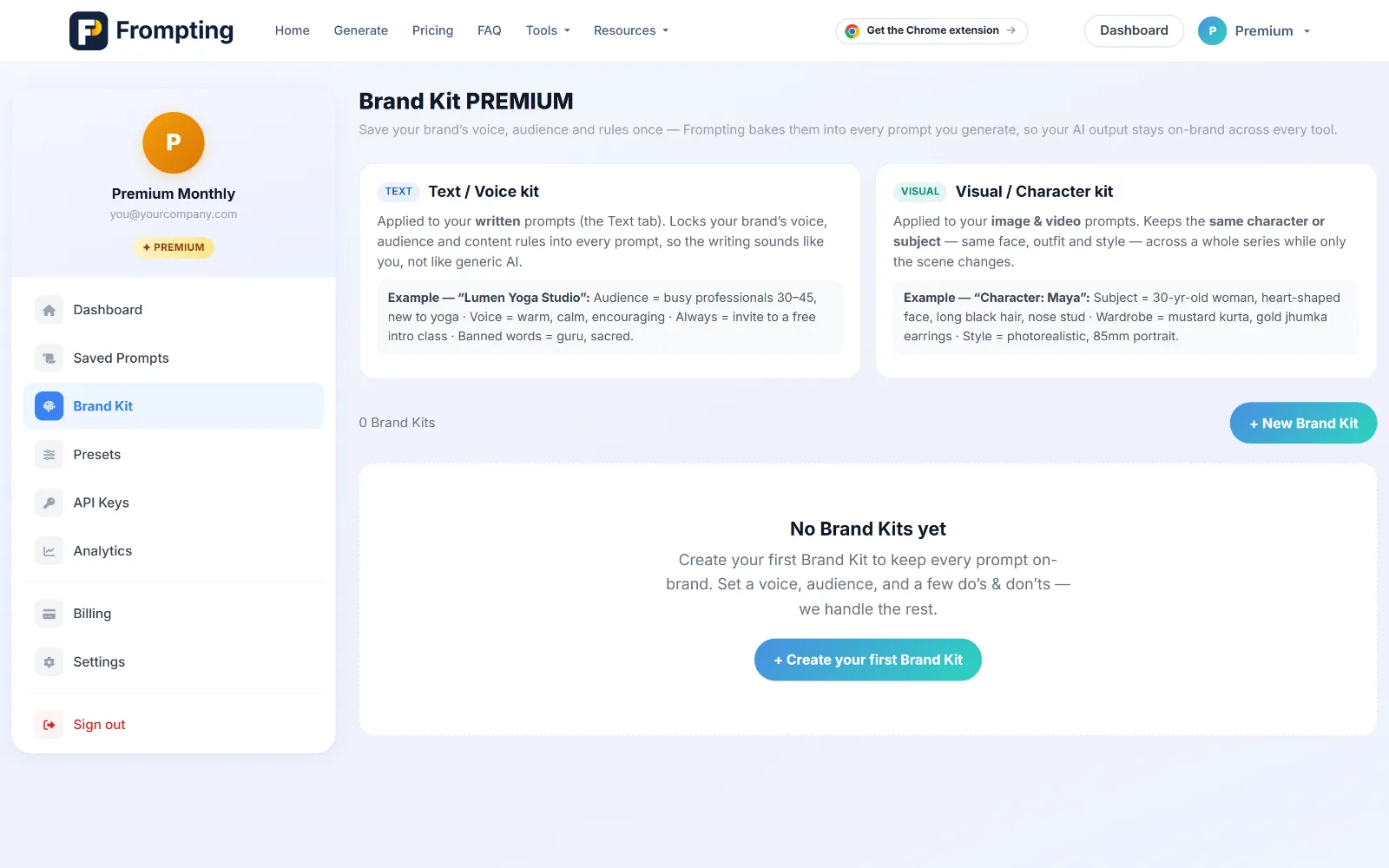
There are two kinds, and the generator picks the right one for the tab you're on:
- Text kits — voice, audience, things to always say, things to never say, banned words. Used for text prompts.
- Visual kits — subject, wardrobe, visual style, palette, visual negatives. Used for image and video, to keep the same character and style across a whole series where only the scene changes.
You can keep as many kits as you like — one per client or product — with one default per type.
Presets
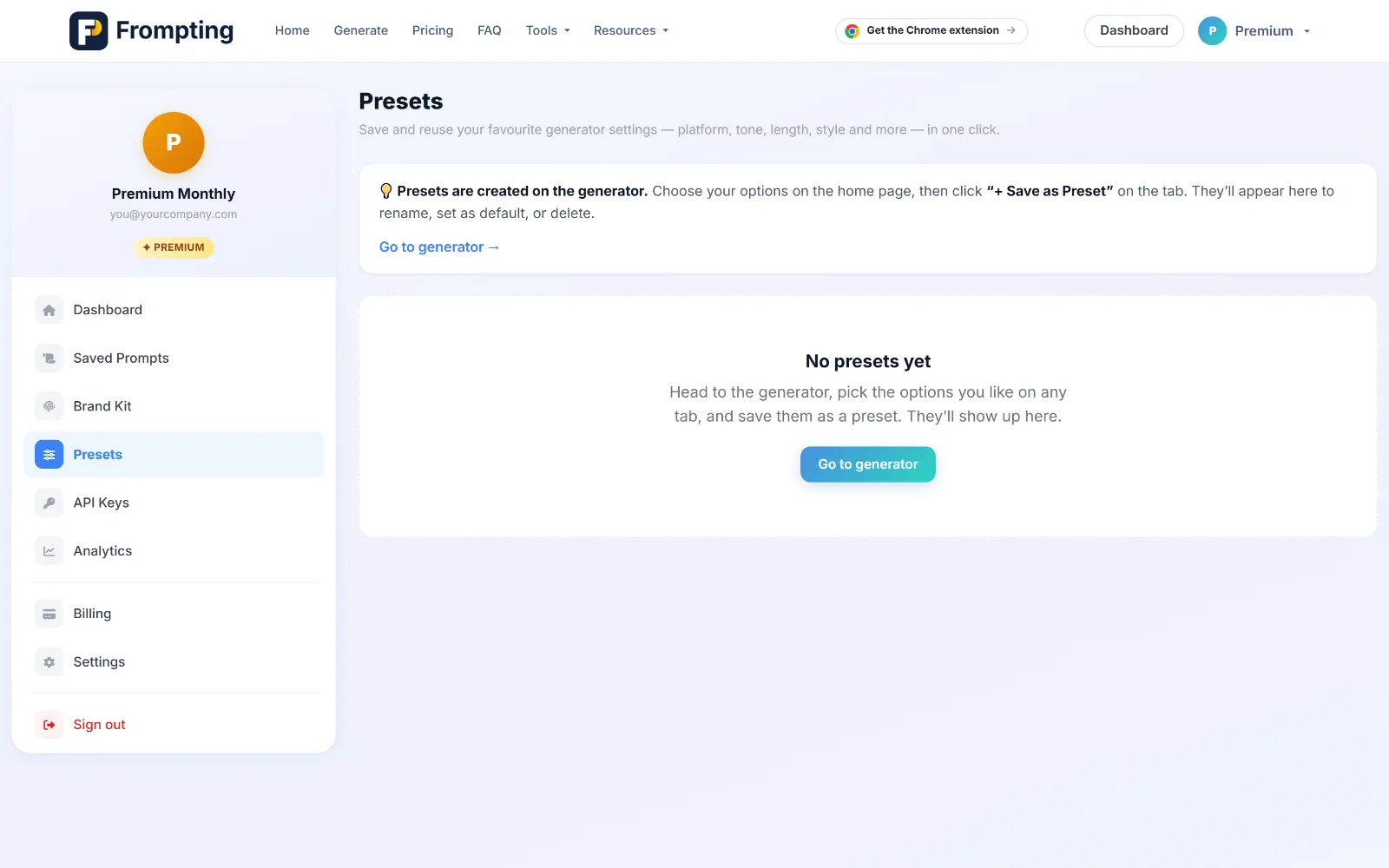
Presets save the mechanical settings — platform, framework, creativity, response length — as a named combination you can reload in one click.
History and saved prompts
Two different things keep your work, and it's worth knowing which is which.
- History is automatic, and it works for everyone including guests. Every prompt you generate is kept in your browser for 30 days — nothing to remember. The last few show on the Generate page; the rest live at My Prompts, searchable and paginated.
- Saved prompts are deliberate. Press Save Prompt, give it a name, and it's stored to your account — available from any device at Dashboard → Prompts.
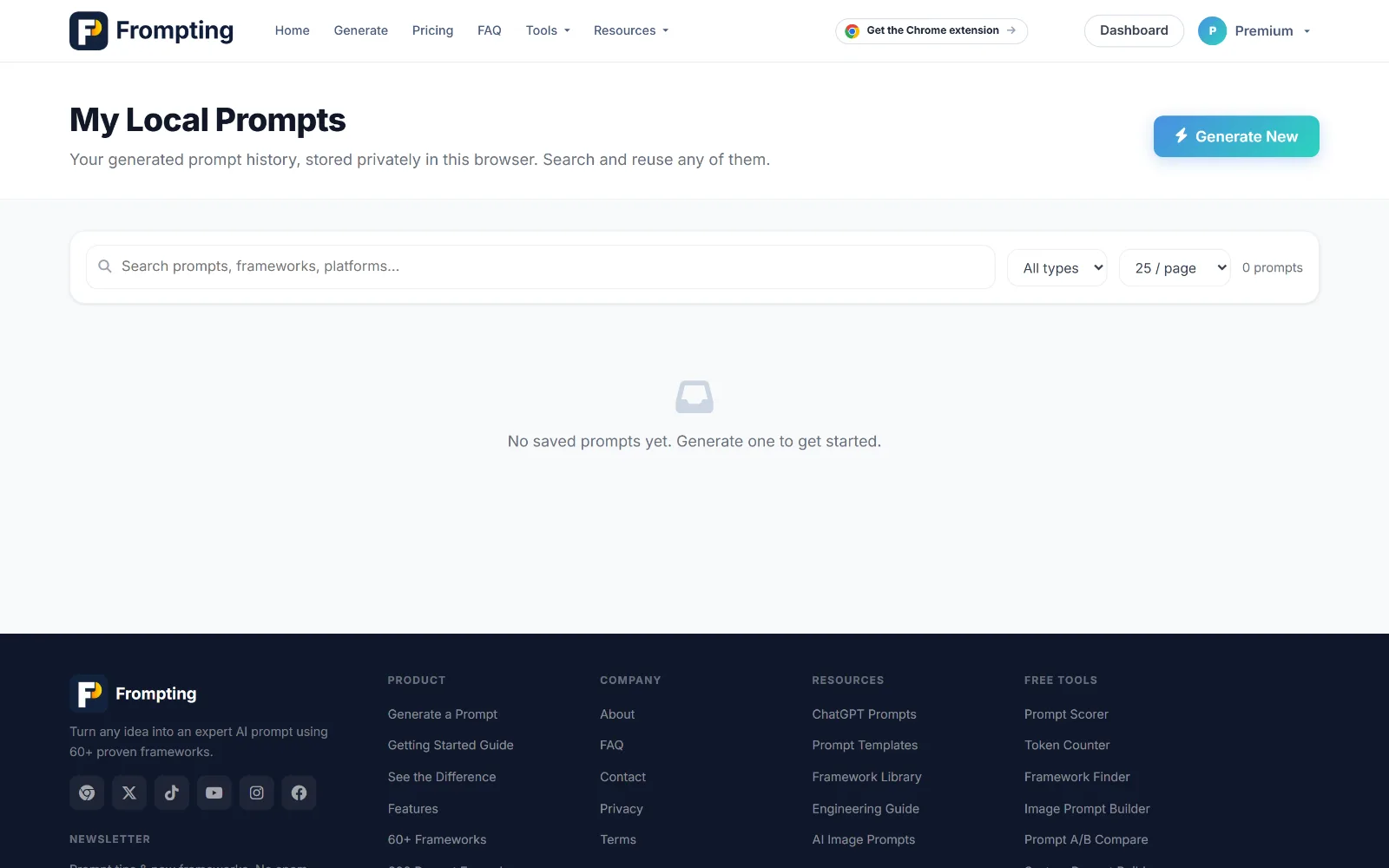
The rule of thumb: history is a safety net, saving is a decision. If it matters, save it — history lives in the browser you generated it in, so a different laptop won't have it.
Your dashboard
Your dashboard is the account side of Frompting.
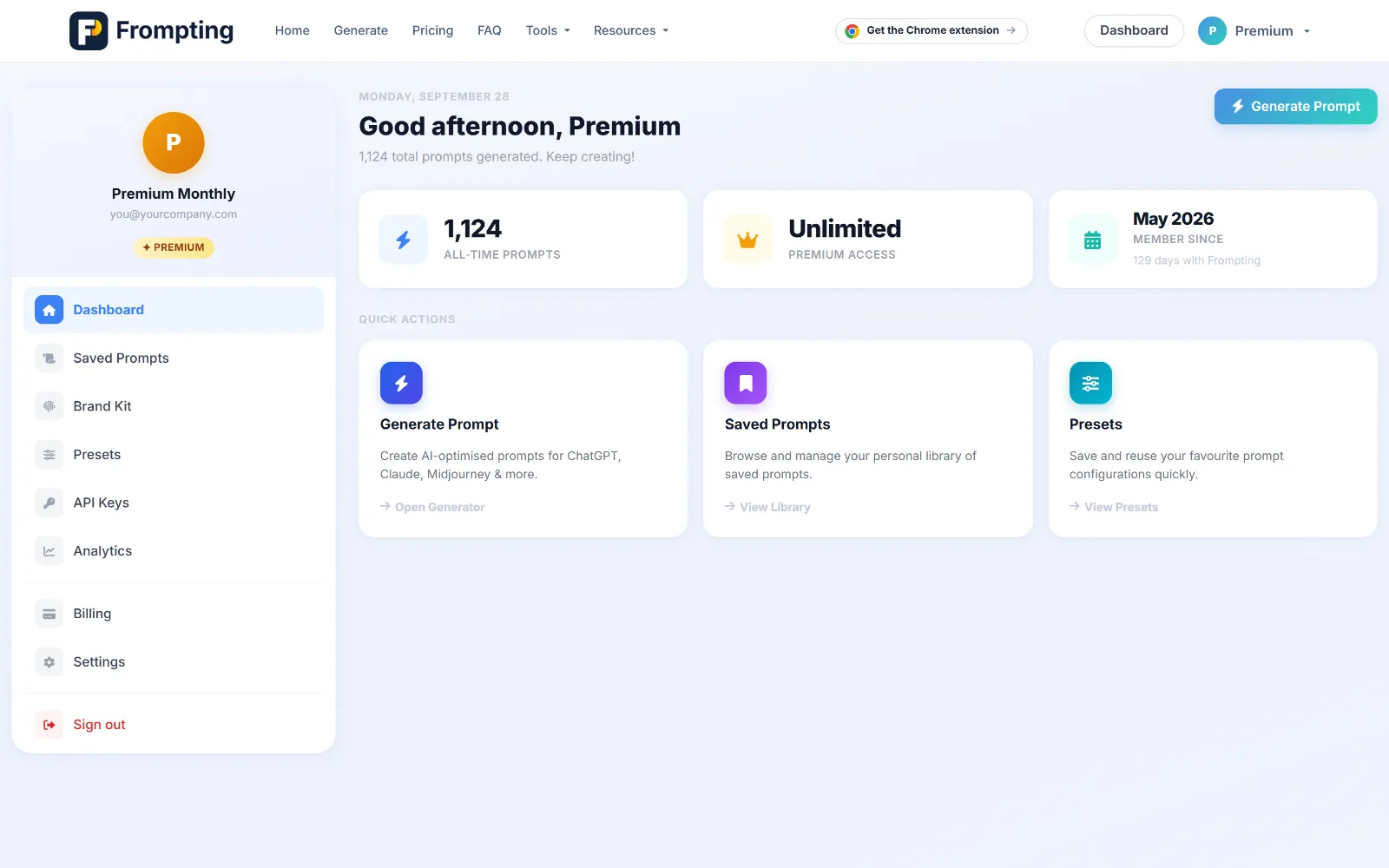
- Prompts — everything you've saved, with its framework and type.
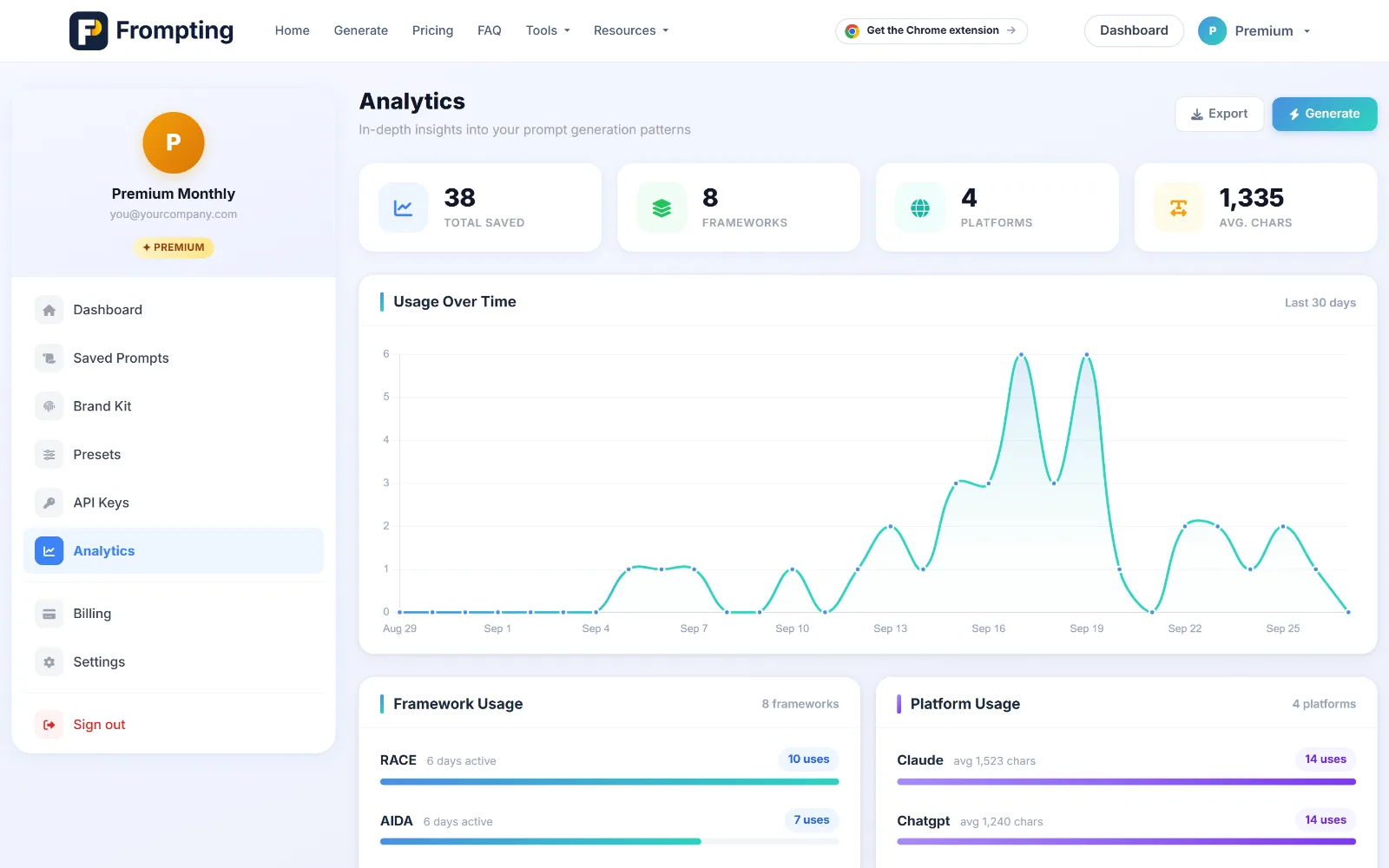
- Analytics — what you generate, which frameworks you lean on, how your usage moves.
- API Keys — your own provider keys for running prompts in-app.
- Presets and Brand Kit — manage your saved setups.
- Billing — plan, invoices, payment method, cancellation.
- Settings — name, password, email preferences, active sessions.
Team plans
Team gives you 10 seats — you plus nine colleagues — each with their own login, their own history and their own saved prompts.
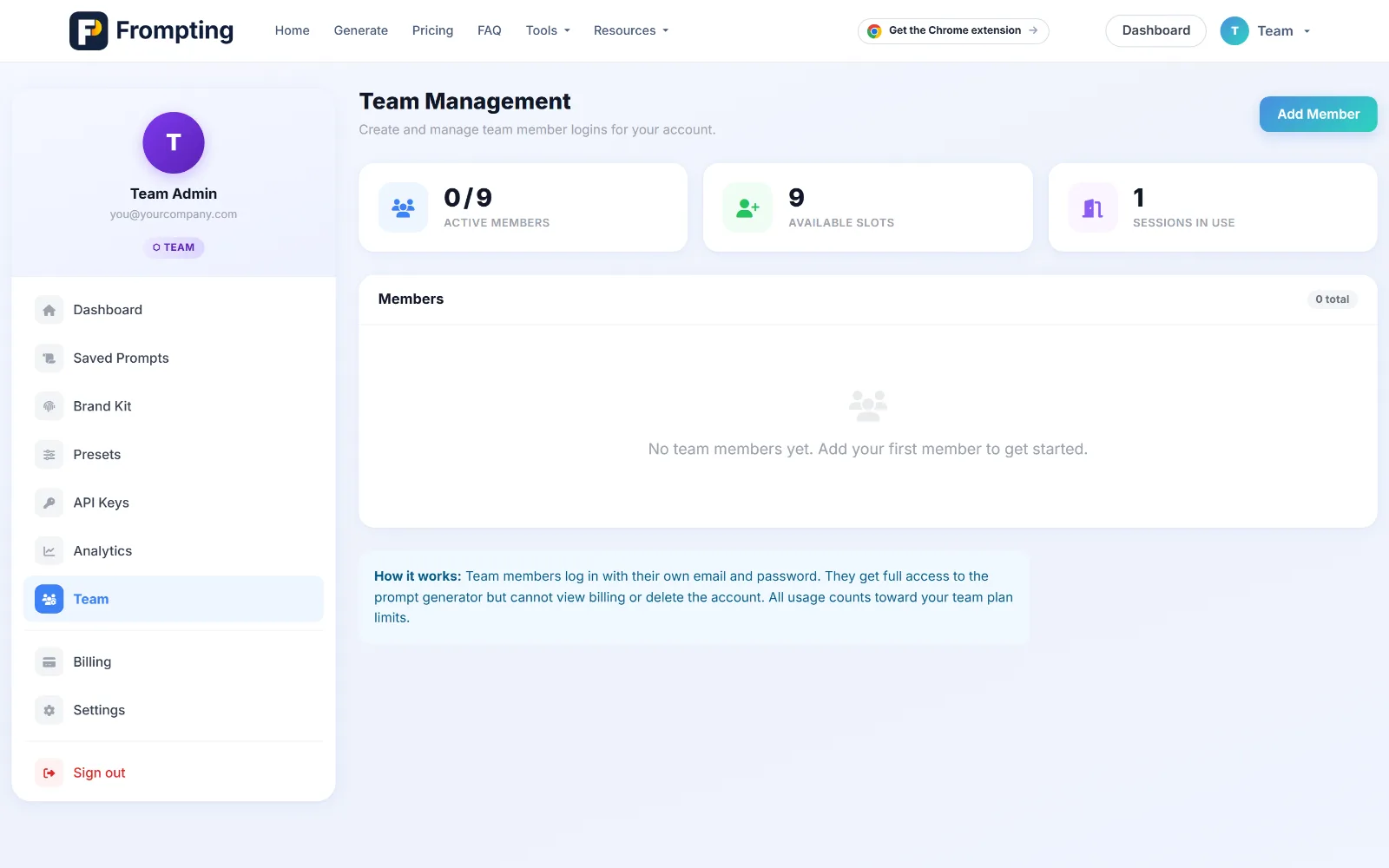
- Open Dashboard → Team.
- Add a member by name and email; they get their own credentials.
- They sign in normally and start working.
- Remove anyone at any time to free their seat.
The plan carries 15,000 prompts a day shared across the team, with a 1,500-a-day ceiling per member so one enthusiastic colleague can't drain the pool before lunch.
The Chrome extension
The Chrome extension puts Frompting inside the AI tools you already use. A button appears next to the message box on ChatGPT, Claude, Gemini and fifteen other sites — type your rough idea, click it, and a proper prompt replaces what you typed, without leaving the page. It also does the one thing no chat site does for you: saves a whole conversation so you can continue it anywhere.
It signs in with your normal Frompting account, so your plan and allowance carry across. Everything below is free unless marked otherwise.
Installing and finding the button
- Add it from the Chrome Web Store (Chrome, Edge and Brave all work), then pin it: the puzzle icon at the top-right of the browser, then the pin next to Frompting.
- Open ChatGPT, Claude, Gemini or any of the 18 built-in sites. If the tab was already open, refresh it once — the browser only injects into pages opened after the install.
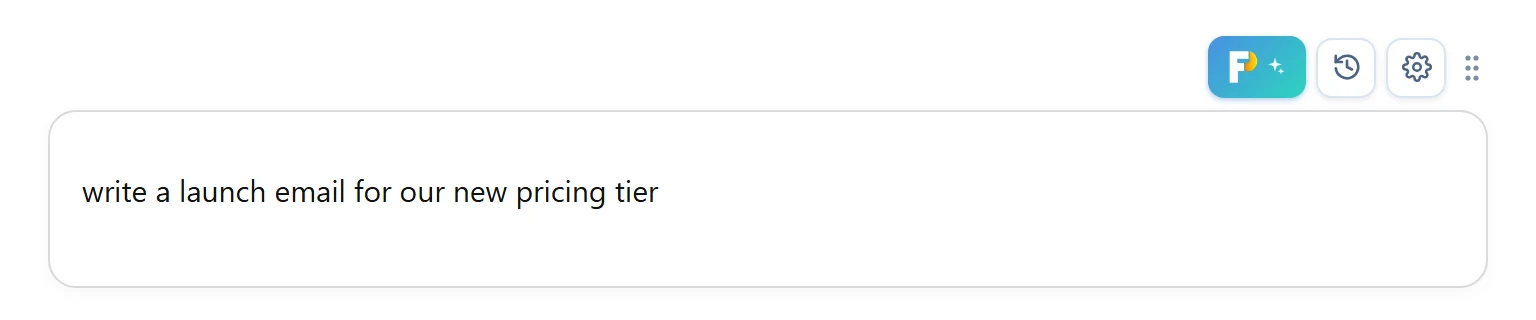
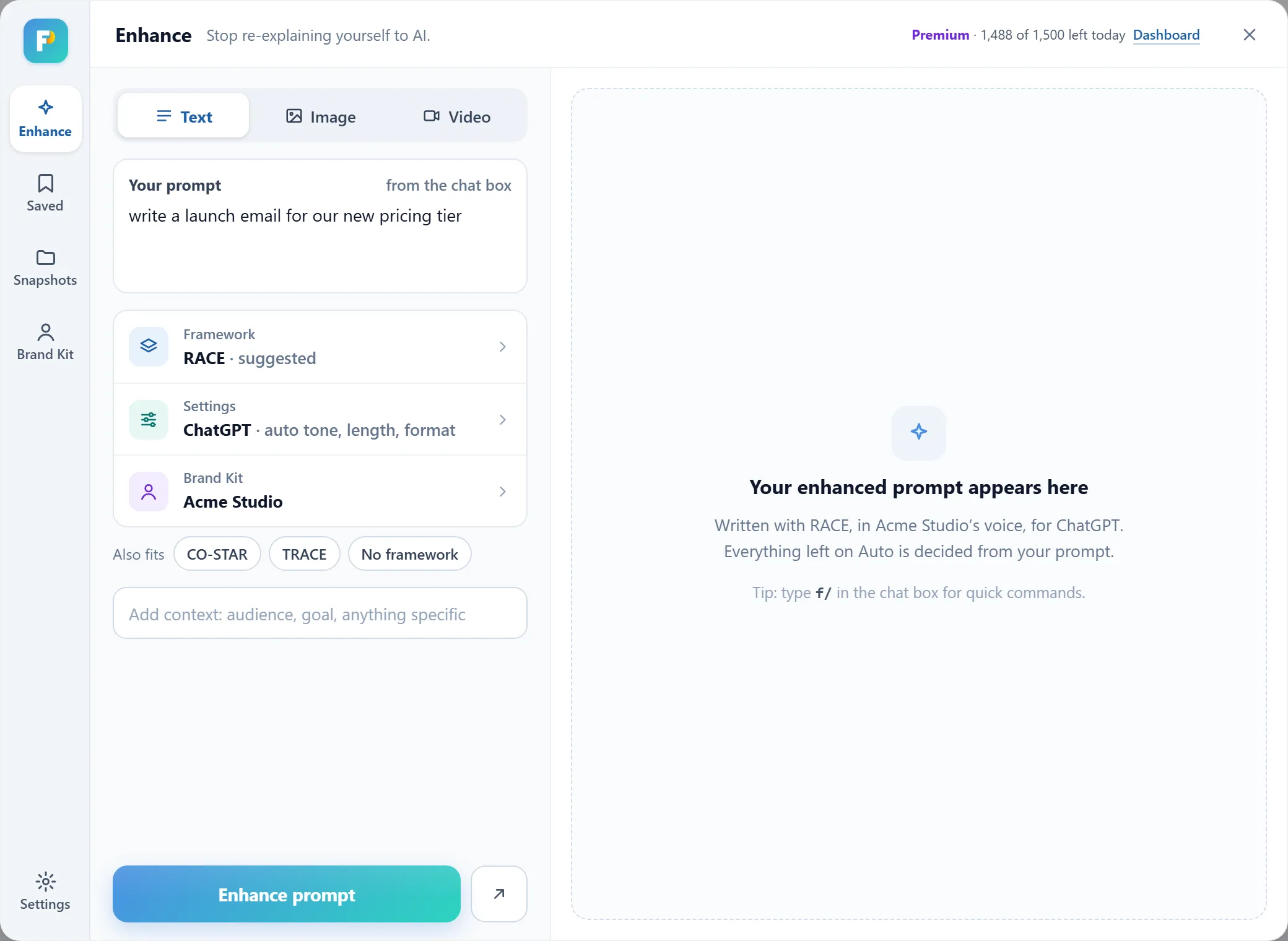
- Look just above the top-right corner of the chat box. The Frompting button sits there, with three small controls beside it: history, the gear, and a dotted handle you can drag the whole set anywhere with. Double-click the handle to put it back.
Enhance: rough idea in, structured prompt out
Type your idea in the chat box however it comes out, then click the button. The panel reads what you typed and picks the framework that fits it best, with others that fit one tap away — or choose No framework for a plain rewrite. Tap a row to change the framework, the target AI, tone, length and format, or your Brand Kit; anything left on Auto is decided from your prompt. Then Enhance prompt. The prompt streams in on the right, and Insert drops it into the chat box. Nothing is sent to the AI until you press send.
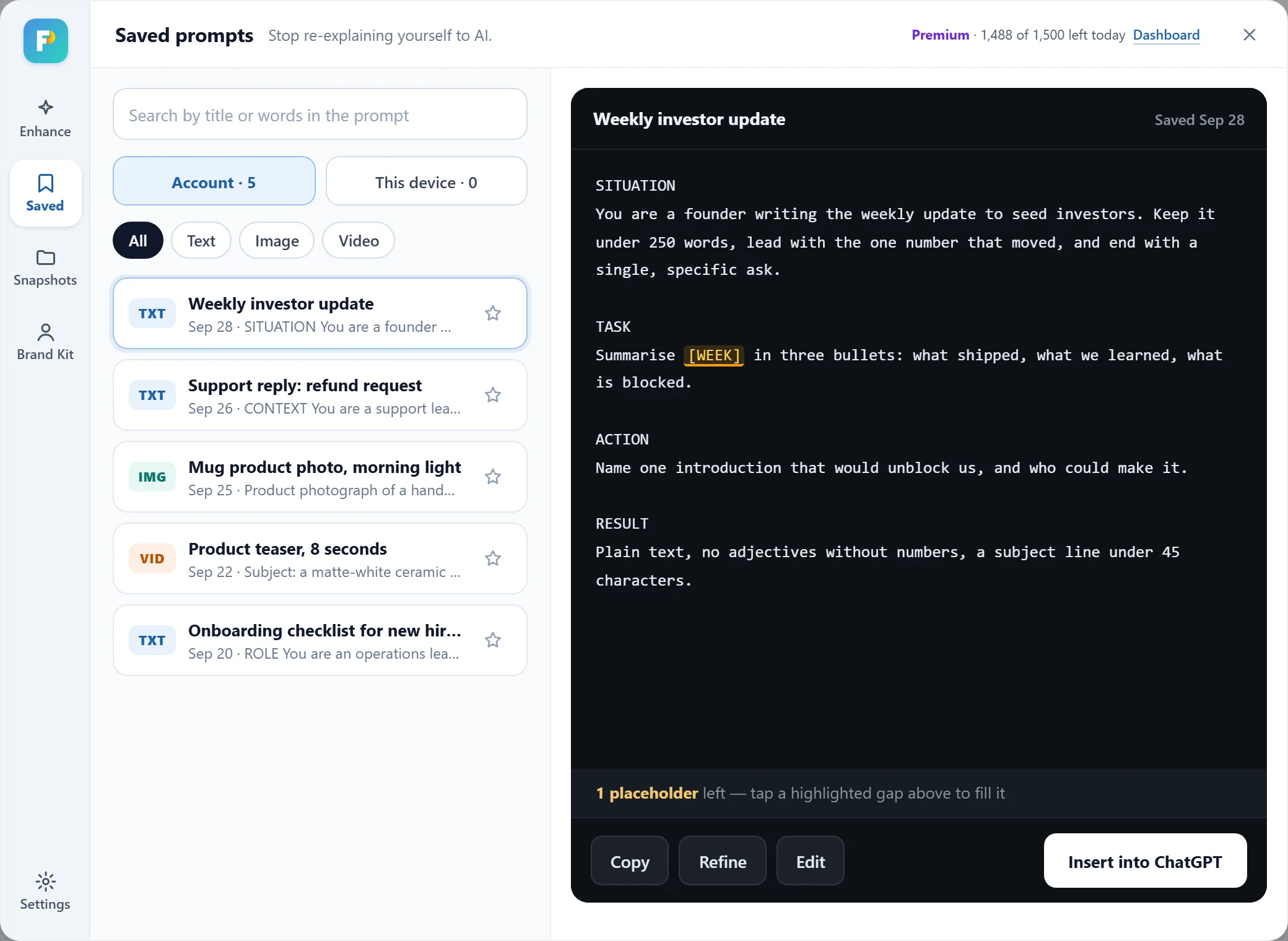
Ask for the same thing twice and the cached result comes back at no cost. Everything you generate is kept on this device and searchable from the history button; on Premium, Save also stores a prompt to your account, so it is on your other machines and in your dashboard.
Refine, without starting over
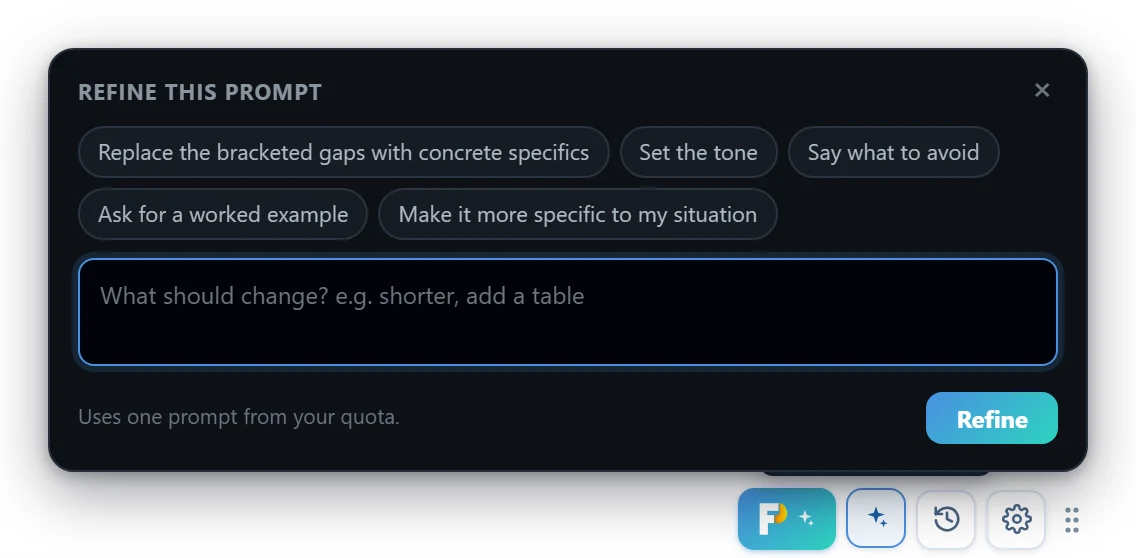
Two ways. Inside the panel, Refine under the result takes an instruction — "shorter", "add a table", "more formal" — and rewrites the prompt in place, keeping its framework intact. From the page, once a prompt is already in the chat box, the small button beside Frompting opens Quick Refine: pick a suggestion chip or type a change, and the result replaces what is in the box. Each refine uses one prompt from your allowance.
The f/ commands
Type f/ at the end of whatever is in the chat box and a menu appears. ↑↓ to move, Enter to choose, Esc to dismiss; keep typing to filter.
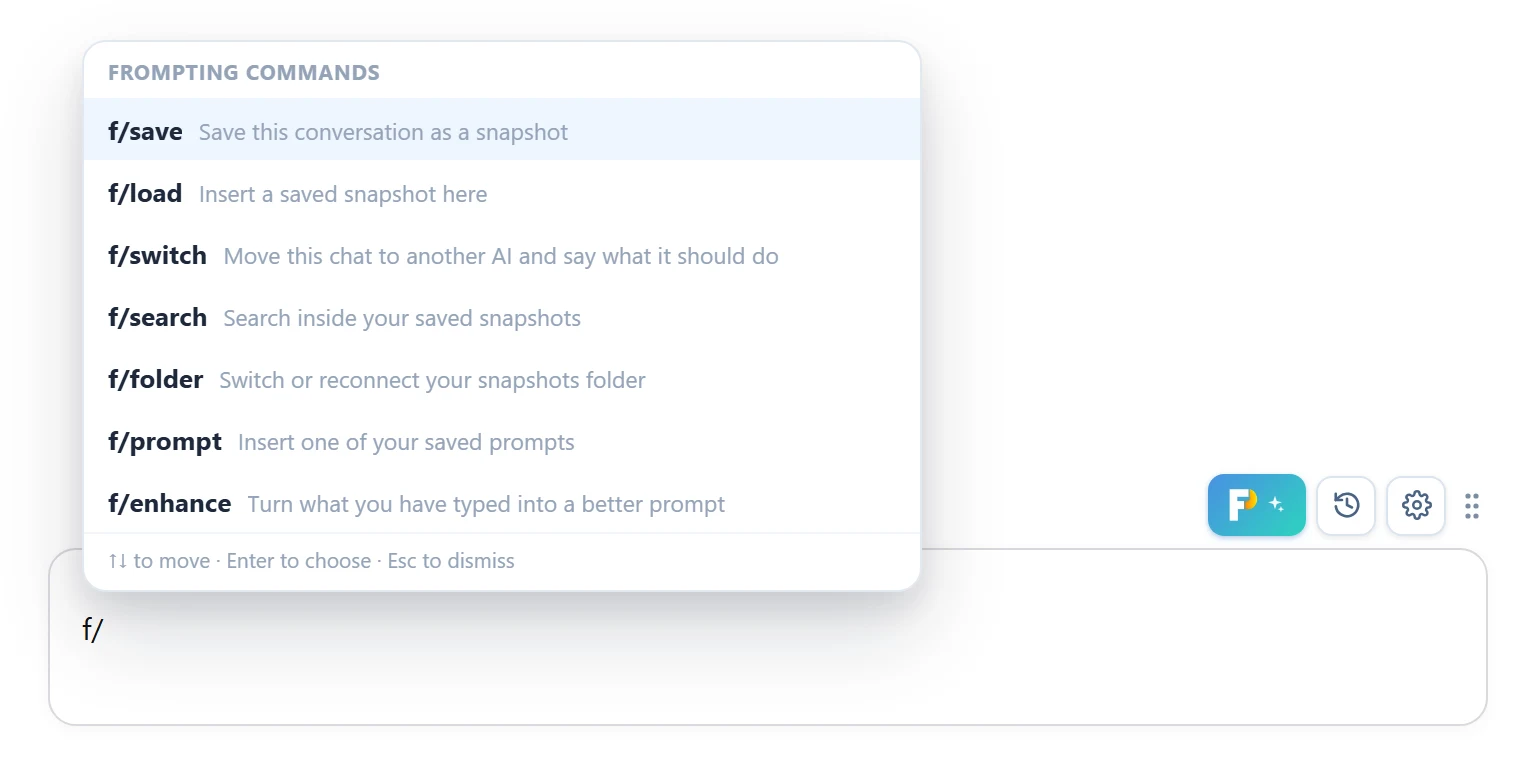
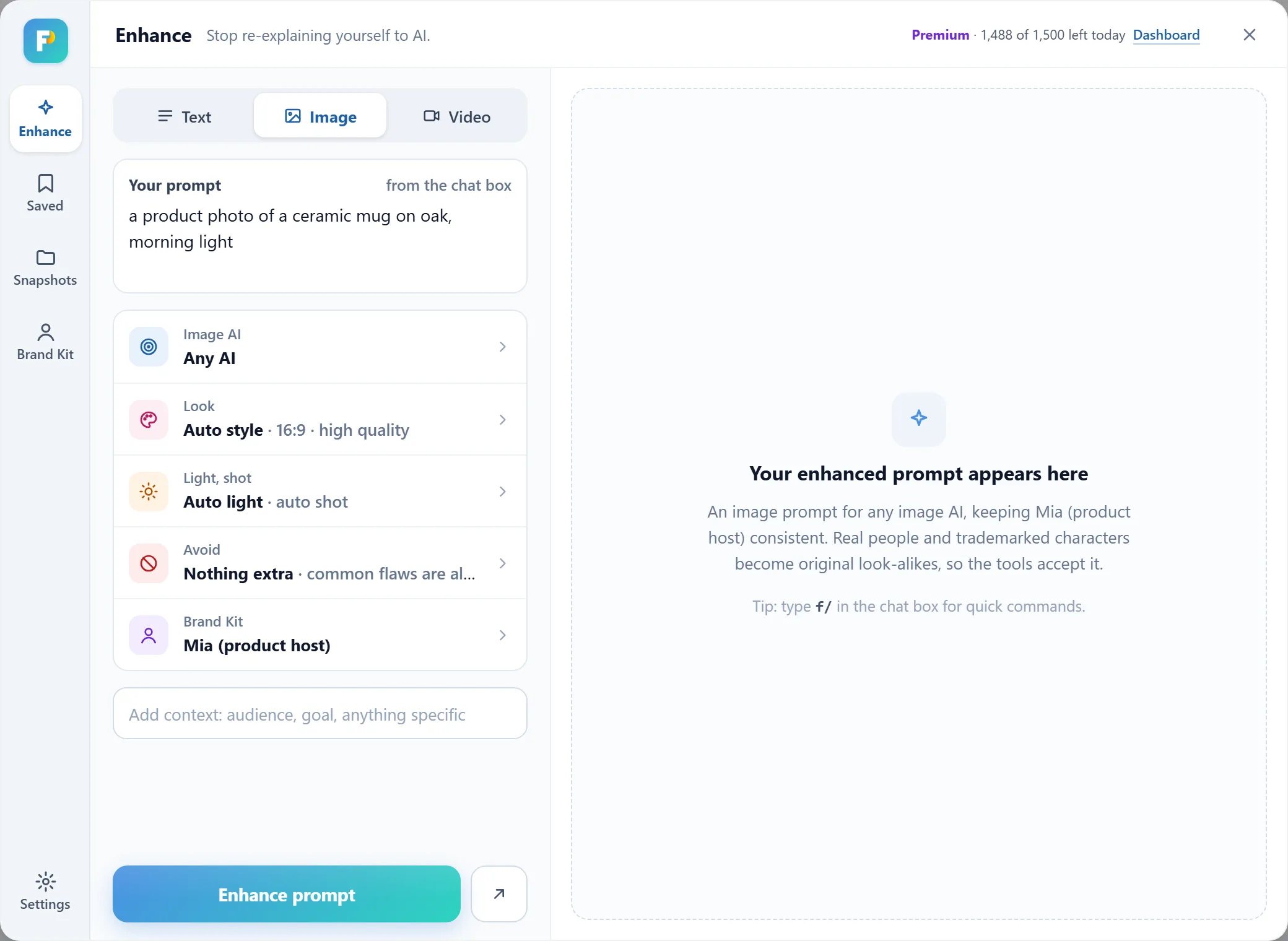
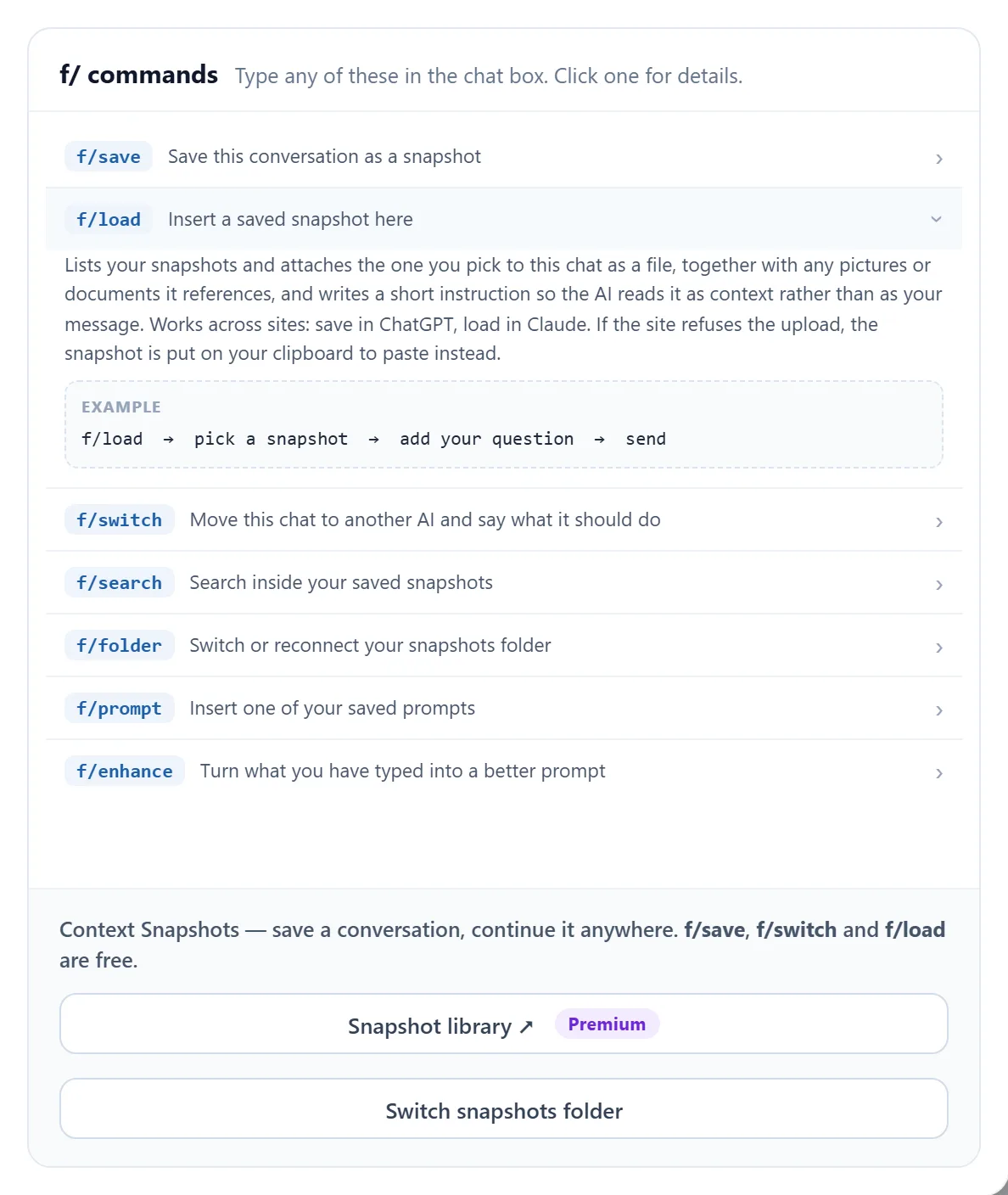
f/save— save this conversation as a snapshot. Every turn, in order, with attached documents converted to text and pictures carried along. Saved on this device; nothing is uploaded.f/load— insert a saved snapshot here. Lists your snapshots and attaches the one you pick to this chat as a file, with any pictures or documents it references and a short instruction so the AI reads it as context rather than as your message. Works across sites and accounts.f/switch— move this chat to another AI. Saves the conversation, opens the AI you pick in a new tab with the chat attached, and writes what you asked for there — carry on, a second opinion, a challenge, an improvement, a fact-check or a different approach. You press send.f/search— search inside your snapshots. Type the words after the command. Every snapshot on this device is searched, with a snippet of where it was said.f/folder— switch or reconnect your snapshots folder. Shows the folder in use and every folder you have used before; pick one andf/loadandf/searchshow the snapshots in that folder.f/prompt— insert one of your saved prompts. Your favourites and account prompts, filtered as you type, inserted ready to edit or send.f/enhance— turn what you have typed into a better prompt. Put your text first, then the command:write a cover letter for a nursing job f/enhance. It opens the panel with your text loaded; one click on Enhance rewrites it.
Context Snapshots: save a conversation, continue it anywhere
Every AI chat forgets. It hits a limit, it gets too long, it lives in one account on one site. A snapshot takes the whole conversation out of the page and makes it a file on your device that any AI can pick up from: f/save in the chat you want to keep, then f/load in any chat — a fresh one on the same site, a different AI, a different account, tomorrow — add your question, and send. The new session has every decision, every draft and every file from the old one.
What travels with it: every message, in readable Markdown; attached documents converted to text and placed exactly where they were attached (PDF, Word, Excel, CSV, Markdown and more), so the next AI reads them as part of the conversation; pictures, uploaded alongside when you load; a scanned PDF with no text to extract, kept as the original file. When a site would not give a file back, the snapshot says so in plain words where the file was. f/save is built and verified on ChatGPT, Claude, Gemini, Perplexity and Grok; f/load, f/prompt and f/enhance work on every site the extension runs on. Saving on other sites is not offered yet.
f/save, open another AI you have — f/load, "continue from where we stopped". You lose nothing but the tab..md and send it. They load it into their own AI and have exactly what you had.f/save and f/load work in every chat on every plan, and your snapshots are complete — documents, pictures, all of it. A snapshot is saved on your device and never uploaded to Frompting.
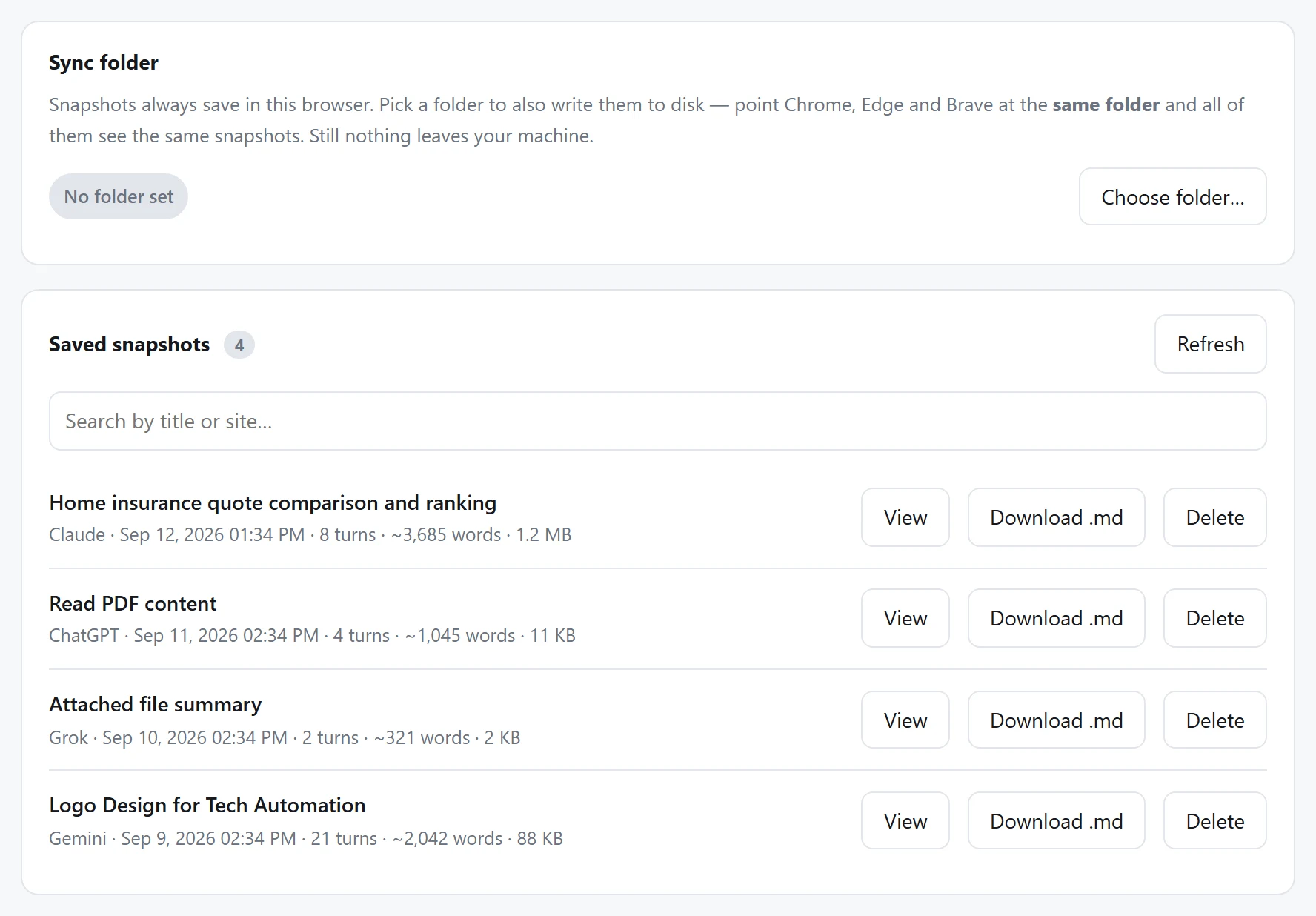
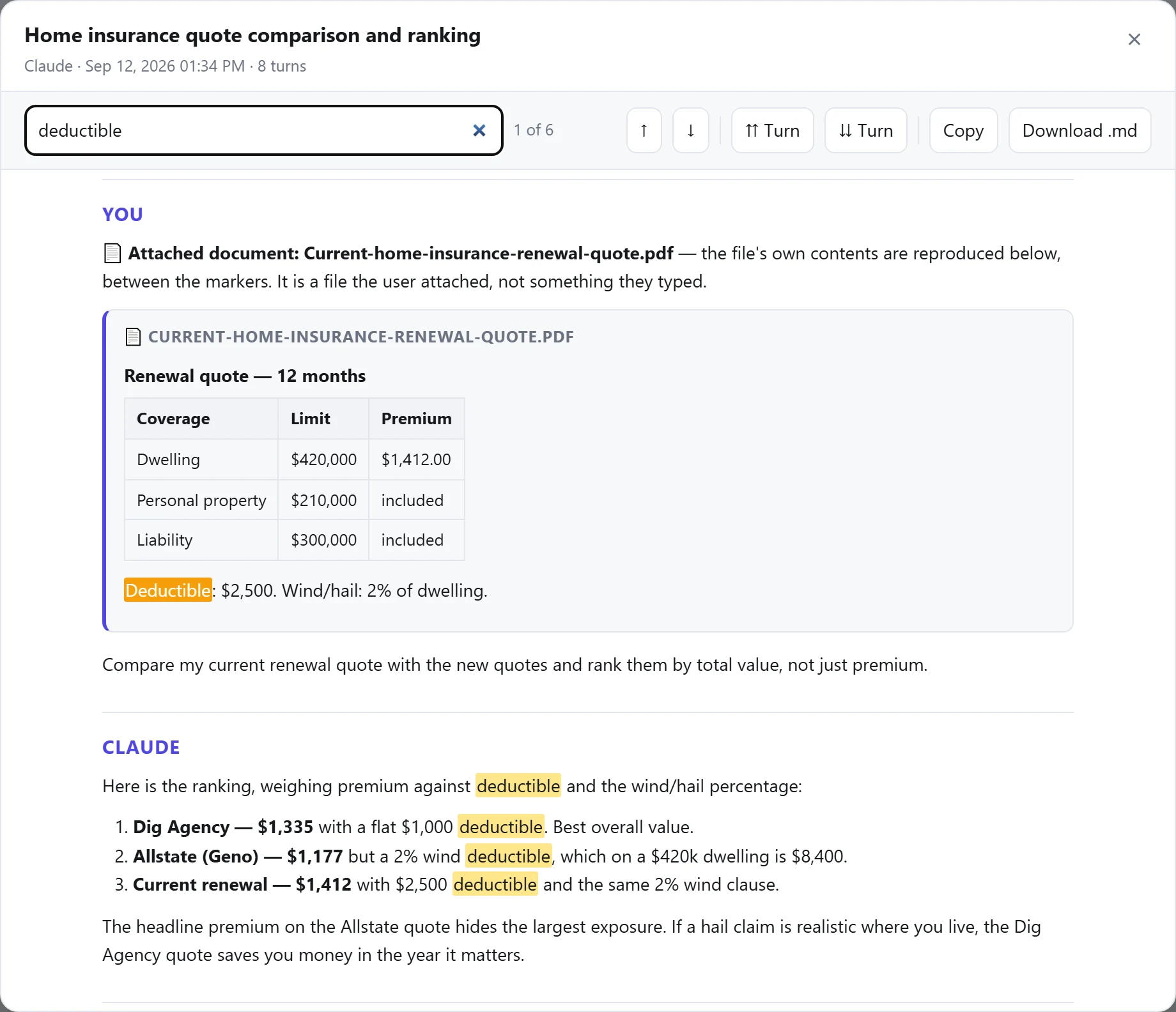
Image and video prompts
On Premium, the Image and Video tabs write prompts for Midjourney, DALL·E, Stable Diffusion, Sora, Runway, Kling and the rest — style, aspect ratio, lighting, shot, negatives formatted for the tool you chose; video as labelled sections. A prompt naming a real person is rewritten around an original character, since those tools refuse likenesses. Pick a Brand Kit in the panel and it is applied automatically — a visual kit keeps the same character and style across a series.
Settings, and other sites
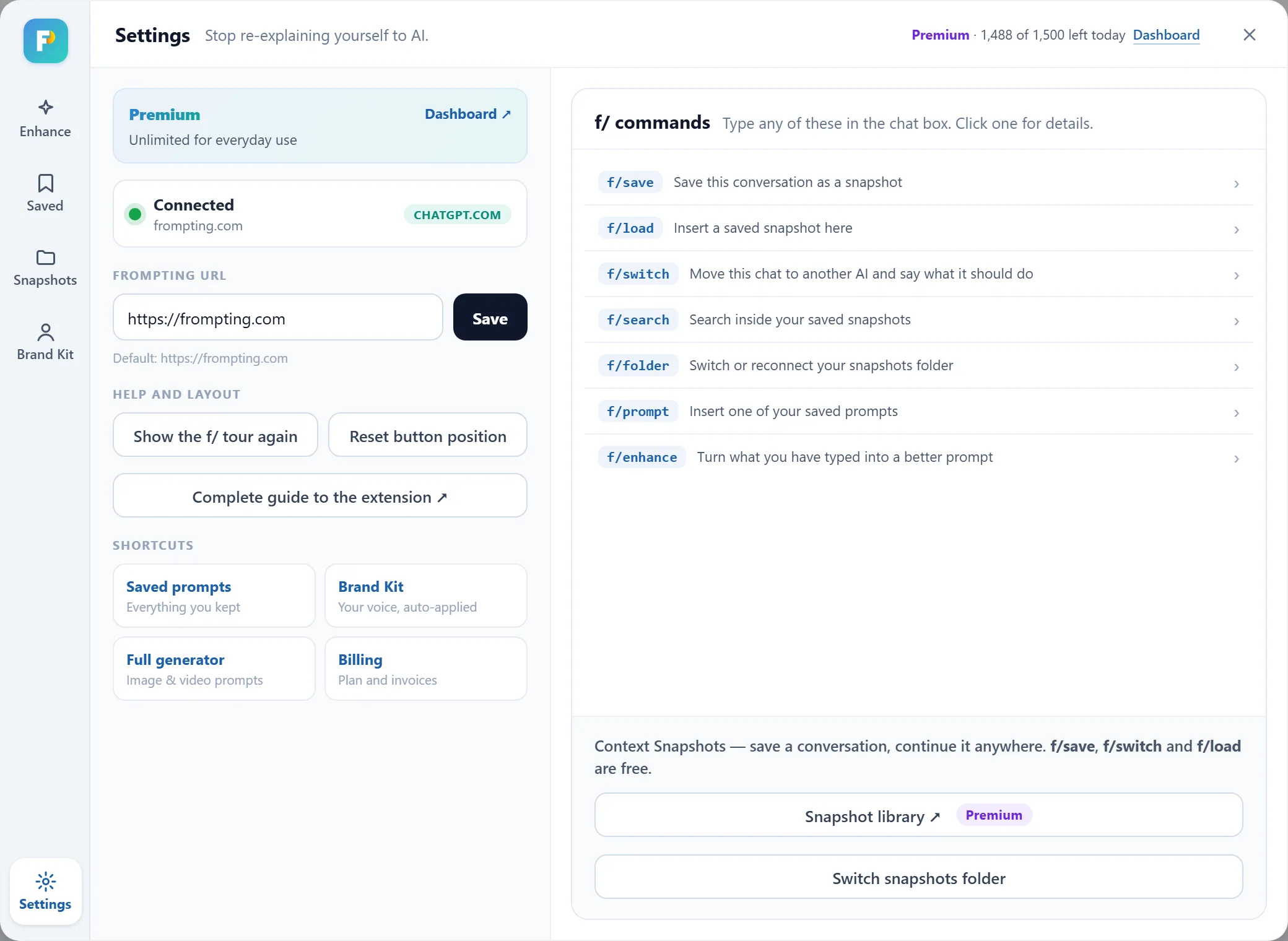
The gear beside the button opens Settings in the panel: your account and remaining prompts, connection status and the site you are on, shortcuts into the web app, Context Snapshots with the button to your library, and every command with its full description and an example. Leave the Frompting URL alone unless you run your own server.
On a site Frompting does not know, open the small window from the Frompting icon in the browser toolbar and press Enable here. The browser asks for permission for that one site, and the button appears. The same window lists the sites you have added, with a remove button for each.
Privacy
- The extension reads what you type in the chat box only when you press Enhance, a refine, or an
f/command — never on its own. - A snapshot is saved on your device, and in the folder you choose if you set one. It is never uploaded to Frompting; we cannot see it.
- When you
f/loada snapshot, it goes to the AI site you are on as a file you attach — the same as dragging a file in yourself. - The only server the extension talks to is Frompting's, to write prompts and to check your plan. Details in the privacy policy; every feature with a screenshot in the complete extension guide.
Troubleshooting
I got the answer instead of a prompt
My prompt is full of [BRACKETS]
I've run out of prompts
The Generate button does nothing
"You're already signed in on another device"
My signup email was rejected
The prompt came out garbled or repetitive
Where did my history go?
The extension button is not showing on the chat page
The extension says I am a guest, but I am signed in
"ChatGPT did not confirm the upload" after f/load
A document in my snapshot says its contents are not available
That's the whole product
The fastest way to make it stick is to generate one prompt for something you're actually working on today.