The complete guide to the Frompting extension
Everything the extension does, with a screenshot of each part. It works on ChatGPT, Claude, Gemini, Perplexity, Grok and 13 more AI sites, and you can add your own.
Add to Chrome — free1. Getting started
Install it, open any AI chat, and look for one button.
- Add Frompting from the Chrome Web Store. Chrome, Edge and Brave all work.
- Pin it: click the puzzle icon at the top-right of Chrome, then the pin next to Frompting.
- Open ChatGPT, Claude, Gemini or any supported site. If the tab was already open, refresh it once — Chrome only injects into pages opened after install.
2. The Frompting panel
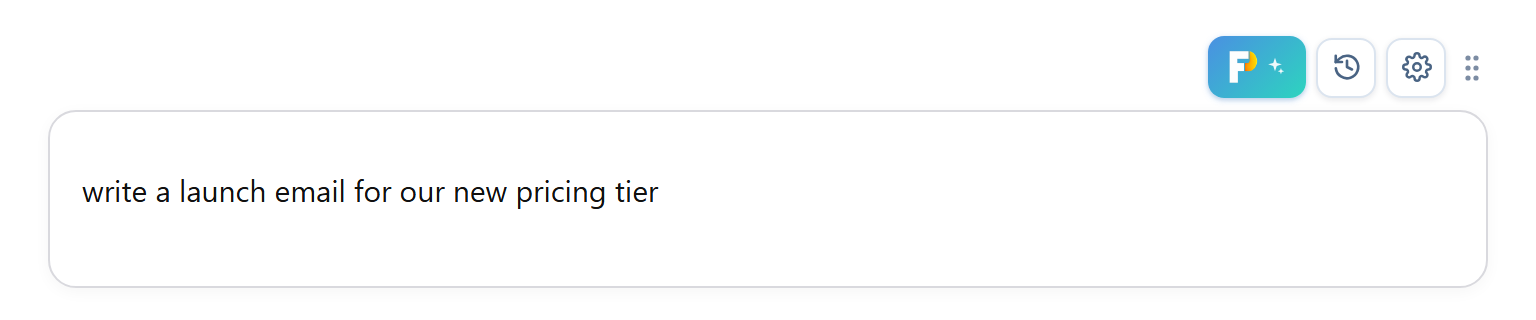
Type a rough idea in the chat box, click the button, get back a structured prompt — dropped straight into the chat, ready to send.
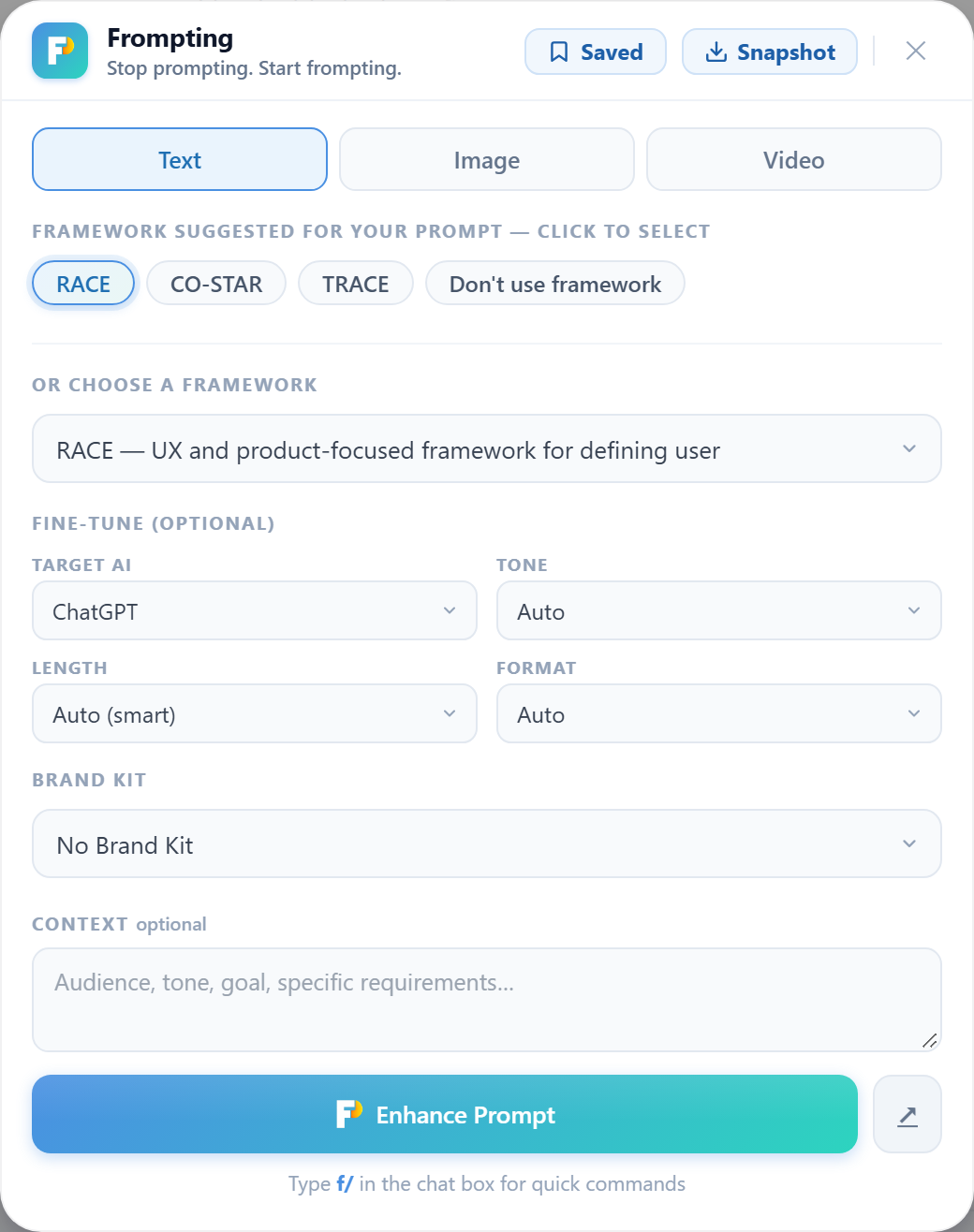
What each part does
- Suggested frameworks — chosen from your text.
RACE,CO-STAR,TRACEand 60 more; click one to select it. Free accounts get 6 frameworks, Premium gets all of them. - Fine-tune — target AI, tone, length and format. Leave them on Auto and the engine decides; a Facebook ad comes back short, a report comes back long.
- Brand Kit Premium — your voice, audience and rules, applied automatically to every prompt.
- Context — anything the AI should know that is not in your text: the audience, the goal, what to avoid.
 Enhance Prompt — writes the prompt and inserts it into the chat box. Nothing is sent to the AI until you press send.
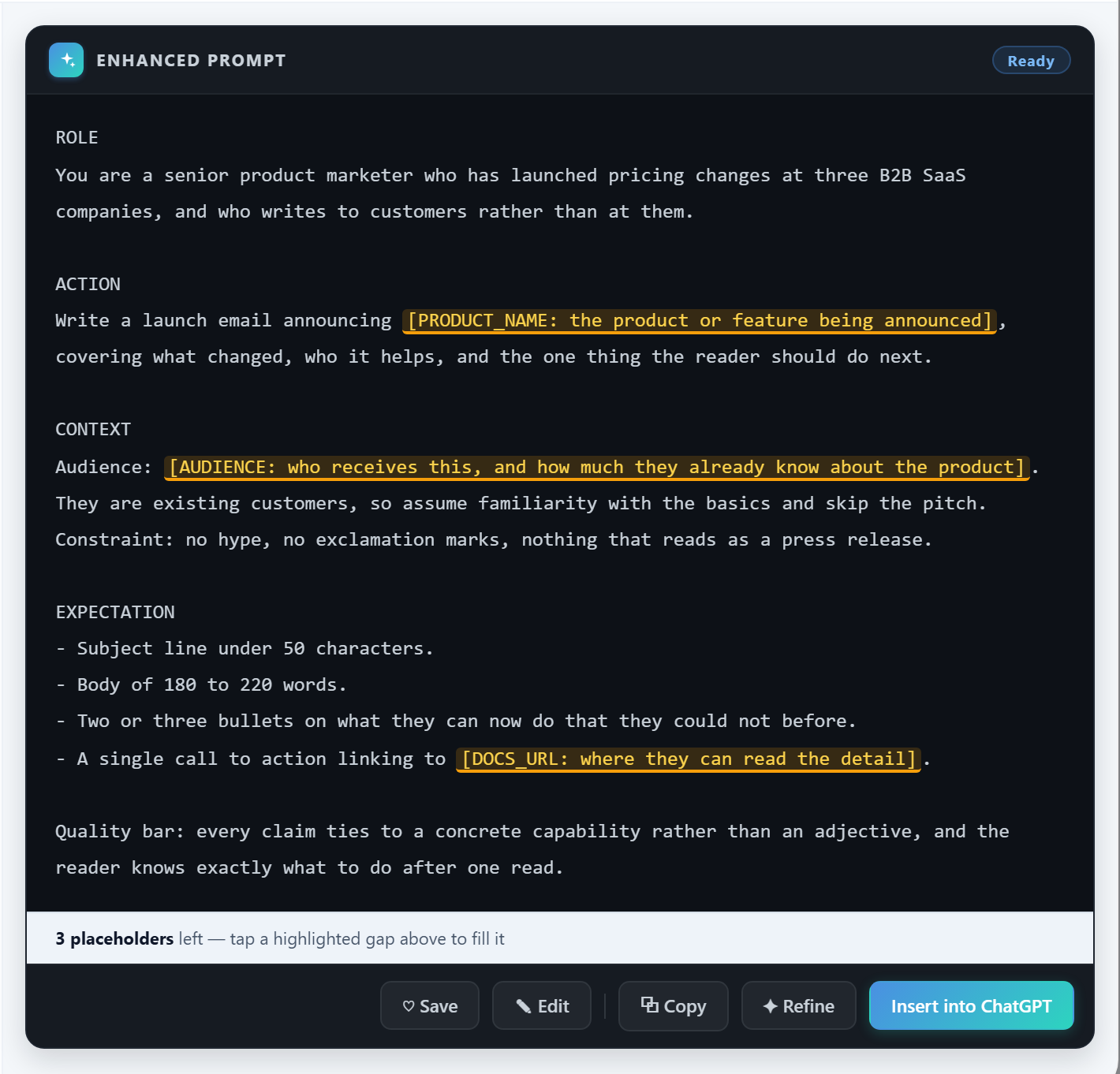
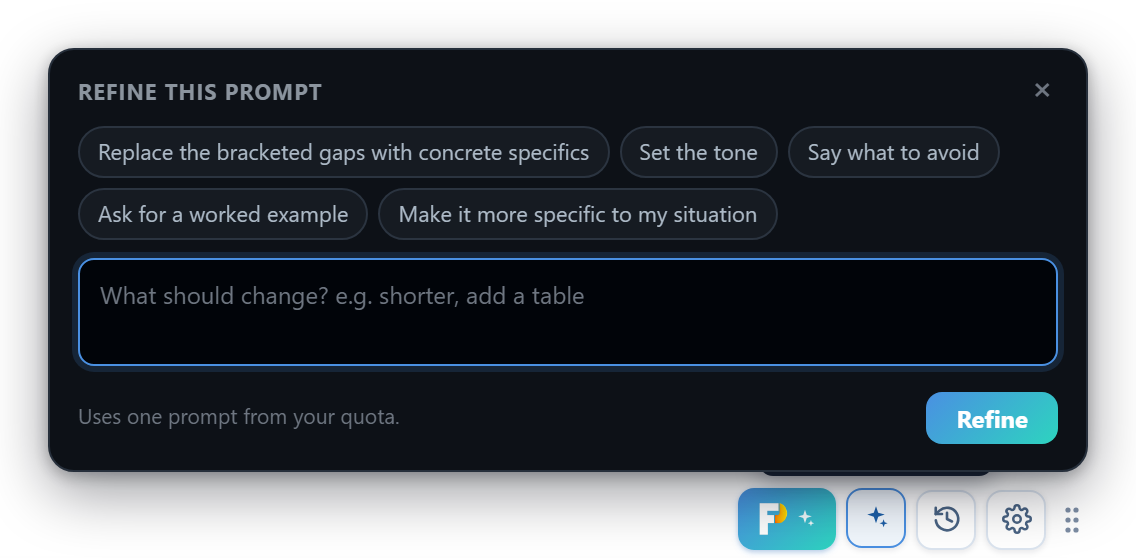
3. Refine a prompt
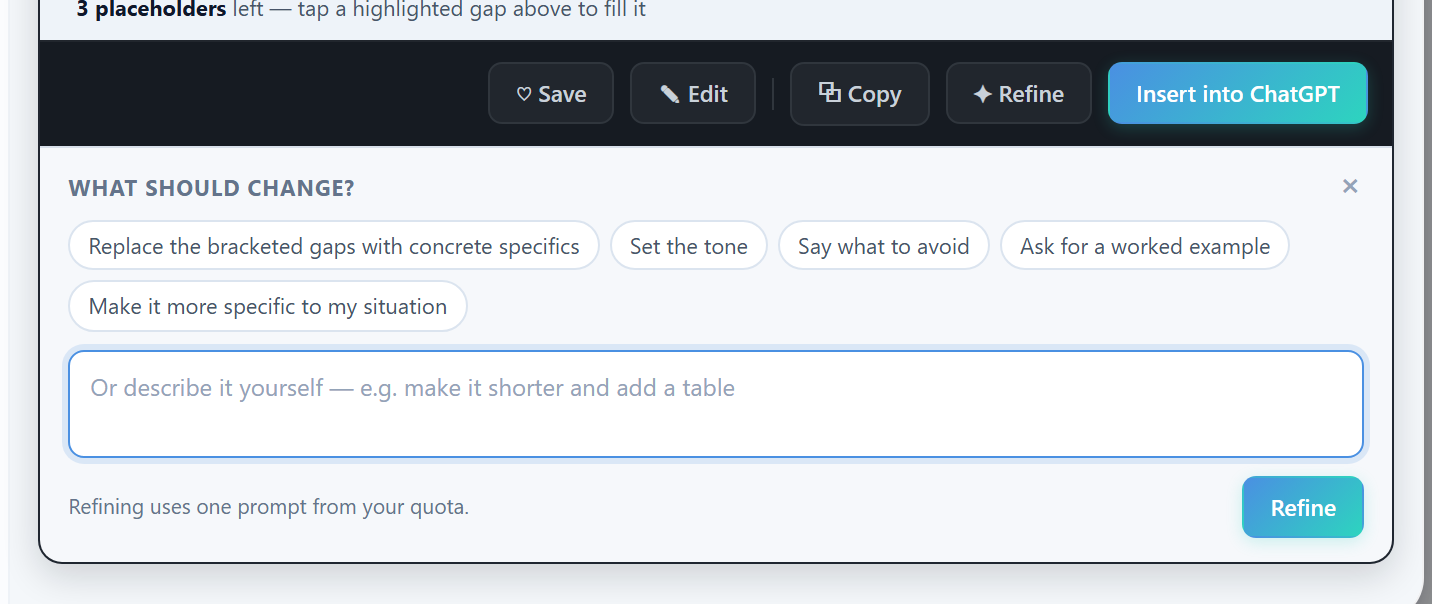
One change at a time, without starting over.
4. Saved prompts & history
Everything you generate is kept on this device; anything you save is kept in your account.
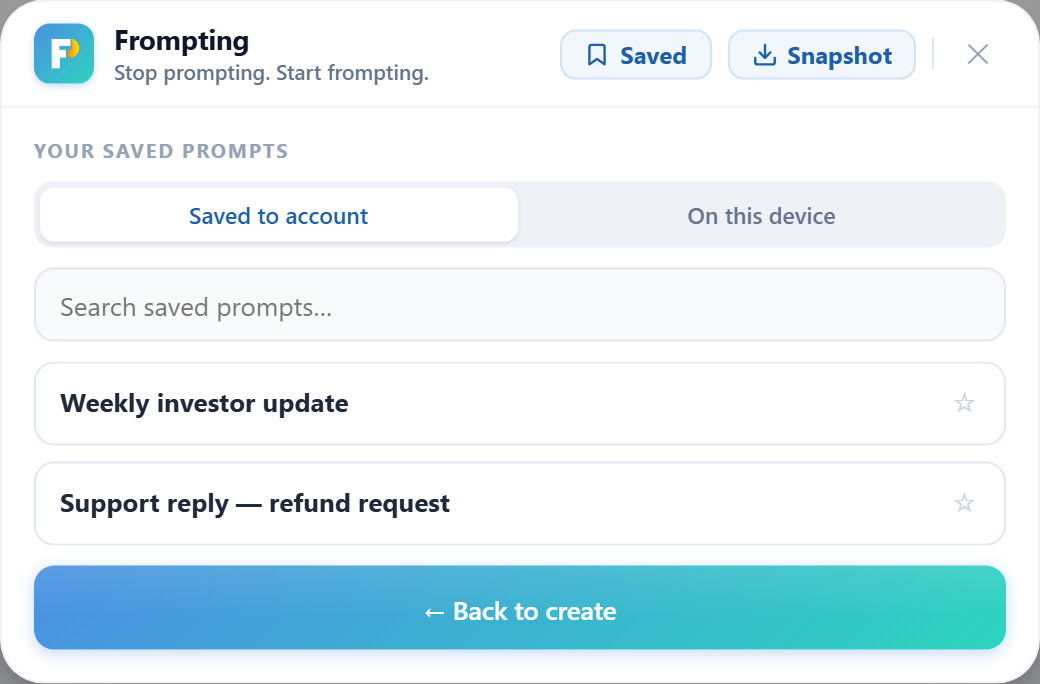
f/prompt.The history button beside the Frompting button opens your recent generations on this device, so a prompt you made yesterday is one click away.
5. Image & video prompts Premium
The Image and Video tabs write prompts for Midjourney, DALL·E, Stable Diffusion, Sora, Runway, Kling and the rest.
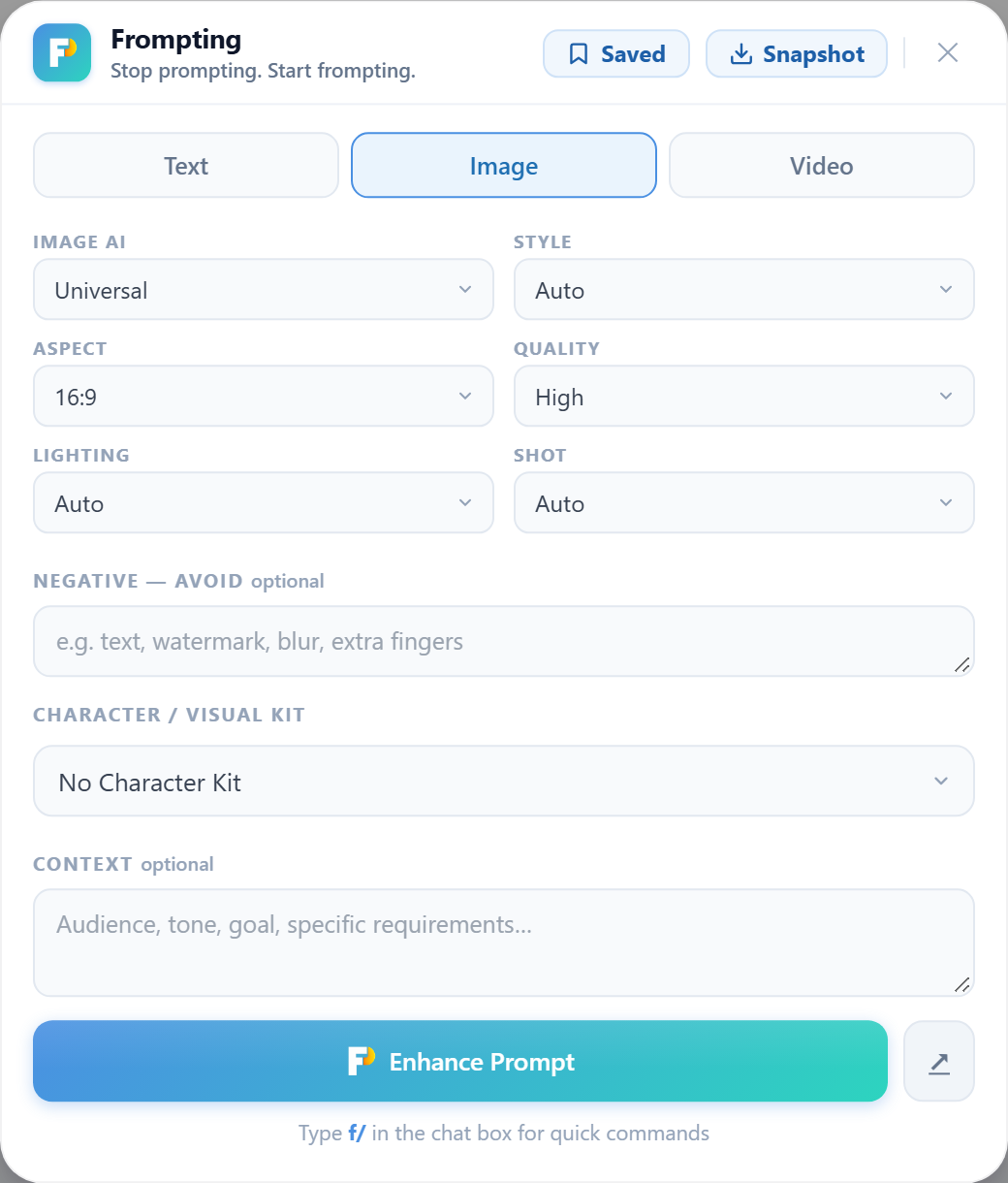
--no, Stable Diffusion gets a Negative prompt line).Video prompts come back structured — Subject, Action, Camera, Lighting, Environment, Style, Motion — because that is what video models follow best. A prompt naming a real person is automatically rewritten around an original character, since the video tools refuse likenesses.
6. The f/ commands
Type f/ in the chat box of any supported site and a menu appears. Four commands, no clicking around.
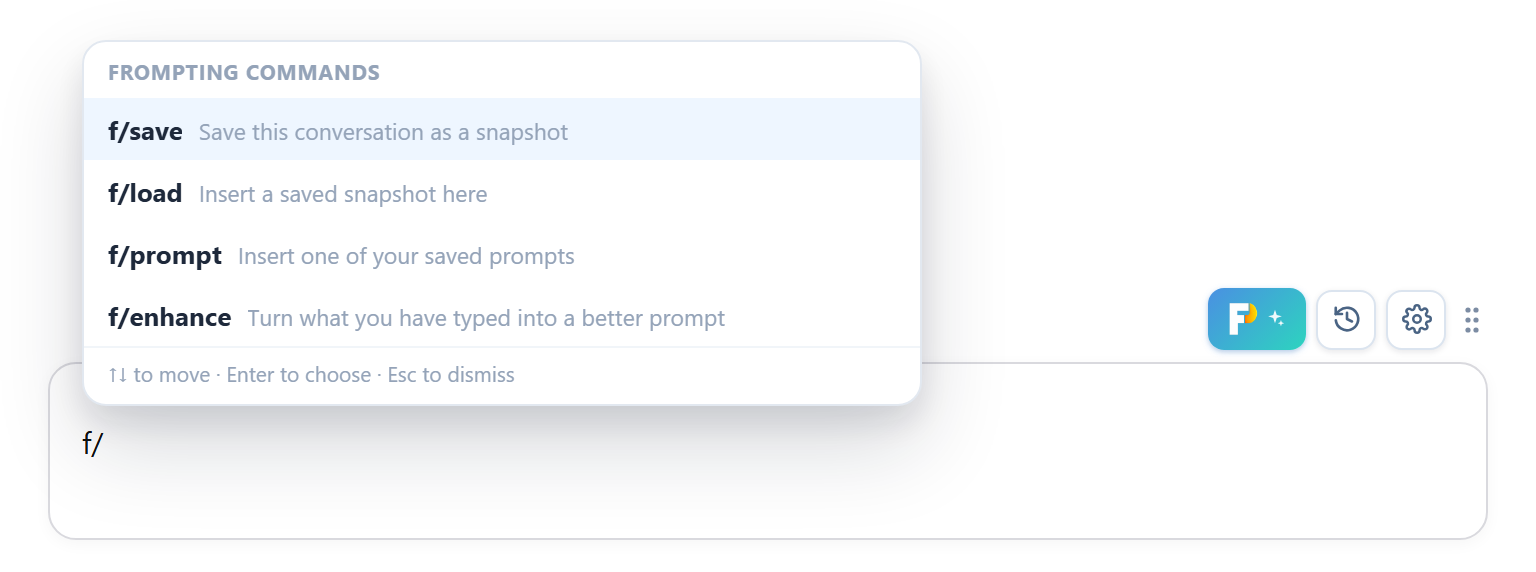
f/ menu. ↑↓ to move, Enter to choose, Esc to dismiss. Keep typing to filter.-
f/saveSave this conversation as a snapshotCaptures the whole conversation you are looking at — every turn, in order, with attached documents converted to text and pictures carried along — and saves it on this device. Nothing is uploaded. Use it before a chat gets too long, or when you want to continue the same work in a different AI.
Example:f/savethen Enter -
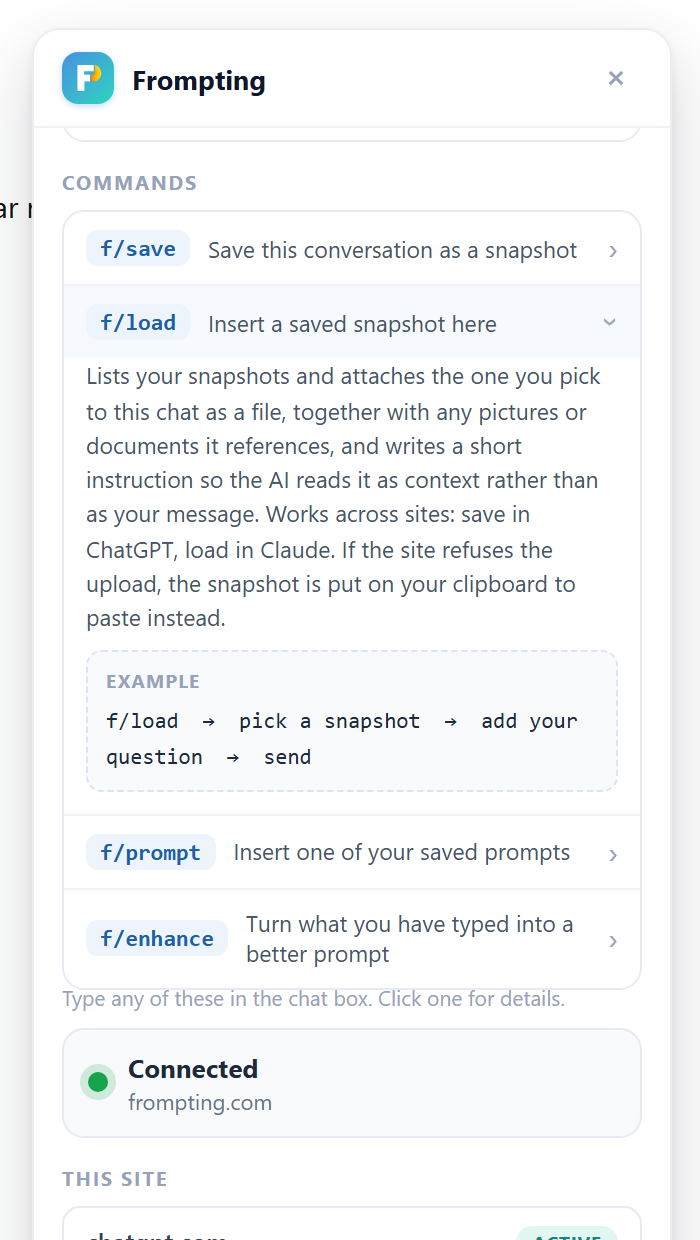
f/loadInsert a saved snapshot hereLists your snapshots and attaches the one you pick to this chat as a file, together with any pictures or documents it references, plus a short instruction so the AI reads it as context rather than as your message. Works across sites: save in ChatGPT, load in Claude. If the site refuses the upload (a daily file limit, usually), the snapshot is put on your clipboard to paste instead.
Example:f/load→ pick a snapshot → add your question → send -
f/promptInsert one of your saved promptsOpens your saved prompts and inserts the one you choose into the chat box, ready to edit or send.
Example:f/prompt→ type to filter → Enter -
f/enhanceTurn what you have typed into a better promptOpens the Frompting panel with what you have already typed loaded into it, so one click on Enhance rewrites it as a structured prompt. Put your text before the command.
Example:write me a cover letter for a nursing job f/enhance
7. Context Snapshots
Save a conversation from one AI and continue it in another — with everything the conversation contained.
A snapshot is one file. It holds every turn of the conversation in order, and it carries what was attached:
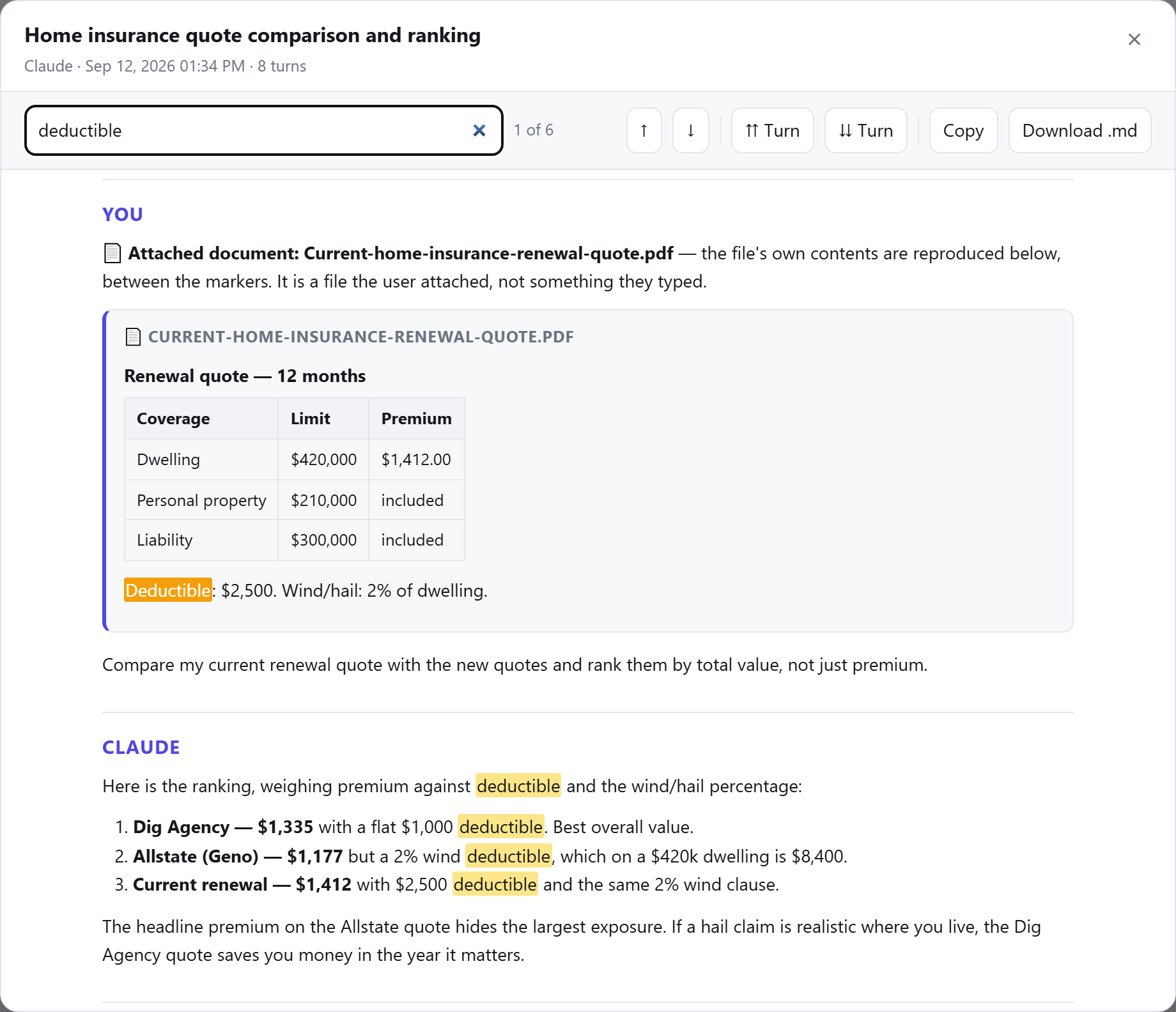
- Documents are converted to text and placed inside the snapshot exactly where they were attached, under their own heading, so the next AI reads them as part of the conversation. PDFs, Word, Excel, CSV, Markdown and more.
- Pictures travel with it and are uploaded alongside the snapshot when you load it.
- A scanned PDF — one with no text to extract — is kept as the original file and uploaded with the snapshot, so the AI can read it directly.
- When a file cannot be carried, the snapshot says so, in plain words, where the file was.
Where it works: snapshots are built and verified on ChatGPT, Claude, Gemini, Perplexity and Grok. f/load, f/prompt and f/enhance work on every site the extension runs on, so a snapshot can be loaded anywhere. Saving on other sites is not offered yet — we would rather say so than hand you half a conversation.
Free: f/save and f/load work in every chat, for everyone. Your snapshots are complete.
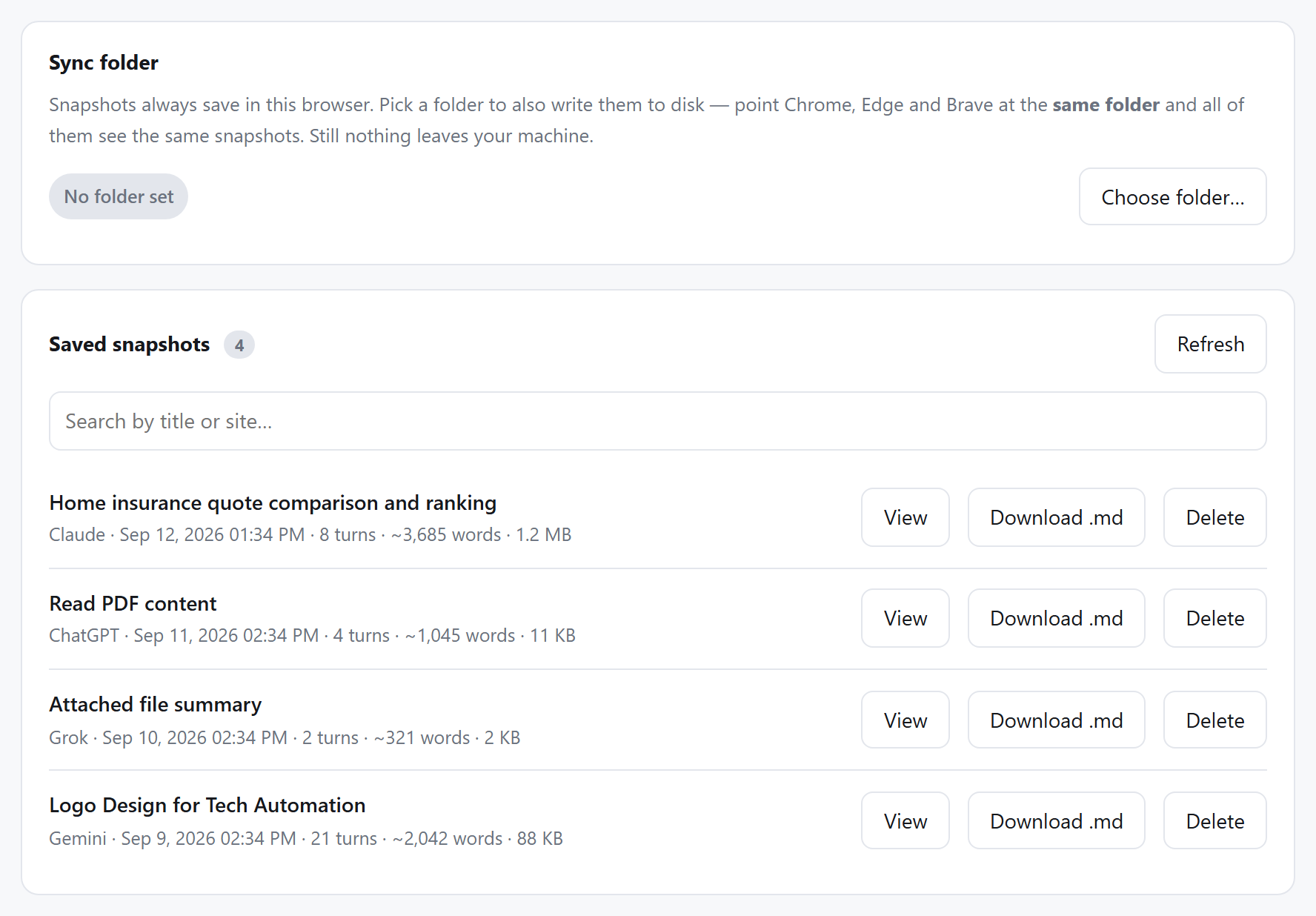
Premium: the snapshot library — browse, search, read and download every snapshot, and keep them in a folder that Chrome, Edge and Brave all share.
The library Premium
The sync folder
Snapshots always save in the browser you are using. Choose a folder on the library page and they are also written to disk there — point Chrome, Edge and Brave at the same folder and all three see the same snapshots. Still nothing leaves your machine. Chrome asks you to reconnect the folder after it restarts; one click does it.
8. The gear panel
Click the gear beside the Frompting button. Everything lives here.
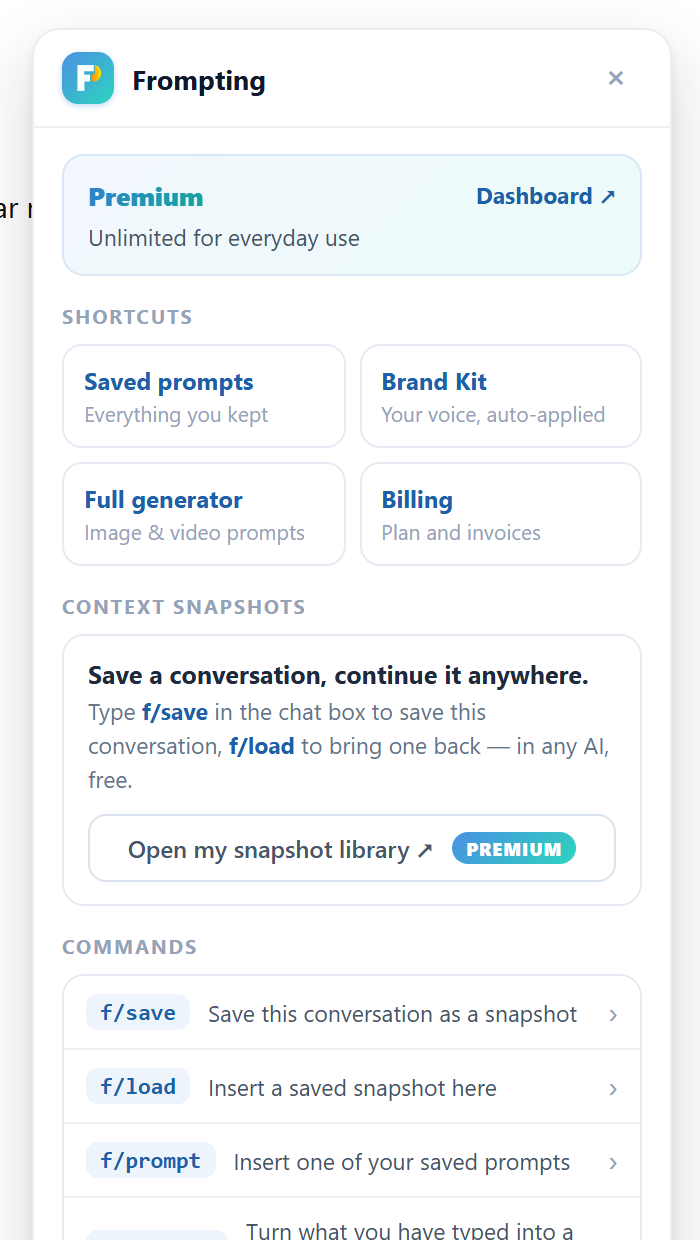
f/ menu offers.- Account — who you are signed in as, your plan, and how many prompts you have left today.
- Shortcuts — the parts of Frompting you use most, one click away: saved prompts, Brand Kit, the full generator, billing.
- Context Snapshots — a reminder of
f/saveandf/load, and the button to your library. - Commands — the reference above.
- This site and Frompting URL — where you are, and which Frompting server the extension talks to. Leave the URL alone unless you run your own.
- Dock — put the buttons back where they started if you dragged them somewhere odd.
9. The toolbar popup
The small window that opens from the Frompting icon in Chrome's toolbar. It does one thing the gear cannot.
The gear panel only exists on sites where Frompting is already running. On any other site, the toolbar popup is how you enable Frompting there: open the popup, press Enable here, allow the permission Chrome asks for, and the button appears on that page. The popup also lists the sites you have added, with a remove button for each.
It links to your snapshot library and the web app, and keeps the Frompting URL under Advanced for anyone running their own server.
10. Privacy
- Frompting reads what you type in the chat box only when you press Enhance, a refine, or an
f/command — never on its own. - A snapshot is saved on your device. It is never uploaded to Frompting. If you set a sync folder, it is written there too; that is still your machine.
- When you
f/loada snapshot, it goes to the AI site you are on, as a file you attach — the same as dragging a file in yourself. - The only server the extension talks to is Frompting's, to generate prompts and to check your plan.
11. Troubleshooting
The button is not showing
Refresh the tab once. Chrome only injects extensions into pages opened after the install. If the site is not one of the built-in ones, enable it from the toolbar popup.
The panel says I am signed out, but I am signed in
Sign in at frompting.com in the same browser, then reopen the panel. If you have changed the Frompting URL to your own server, authorise it from the toolbar popup → Advanced → Save & authorise.
“ChatGPT did not confirm the upload”
Free ChatGPT accounts allow only a few file uploads a day. When the site turns the snapshot down, Frompting puts it on your clipboard: press Ctrl+V under the line it wrote in the chat box, then send. If you can see the file attached after all, just send.
A document in my snapshot says its contents are not available
The site would not give the file back. ChatGPT removes uploads after about an hour, so snapshot a conversation while its files are fresh. On Gemini and Grok, files can be named but not read — that is a limit of those sites, and the snapshot says so where the file was.
The buttons are in a strange place
You dragged them. Double-click the dotted handle, or use Reset button position in the gear panel.